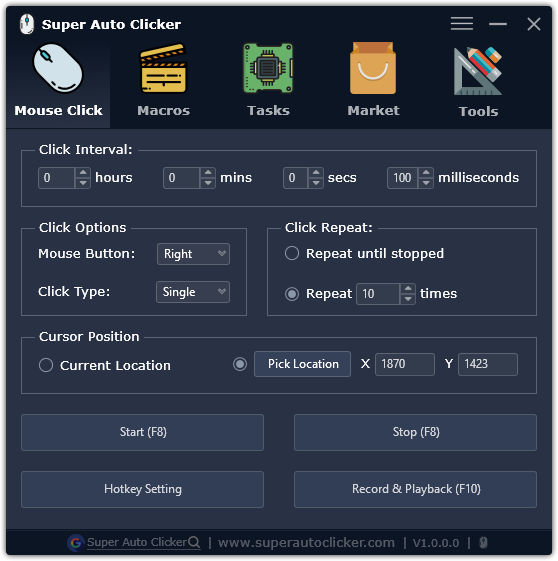
Super Auto Clicker is a free and powerful mouse auto clicker, your great assistant in game playing, online shopping, documents processing, and more.

- Supports left, right, and middle mouse click.
- Click interval can vary from 0.001s to 999mins.
- Infinite or limited repeated clicks.
- Auto click at specific point on the screen.
- Record your mouse and keyboard operations, then replay.
- Global hot key settings.
Currently available only for Windows OS (Windows 7, 8, 10, or 11).
Download the latest version from the releases page, run SuperAutoClicker_v1.x.x.x.exe to install.
-
Download and install Visual Studio 2022. Make sure you have selected "
Desktop development with C++":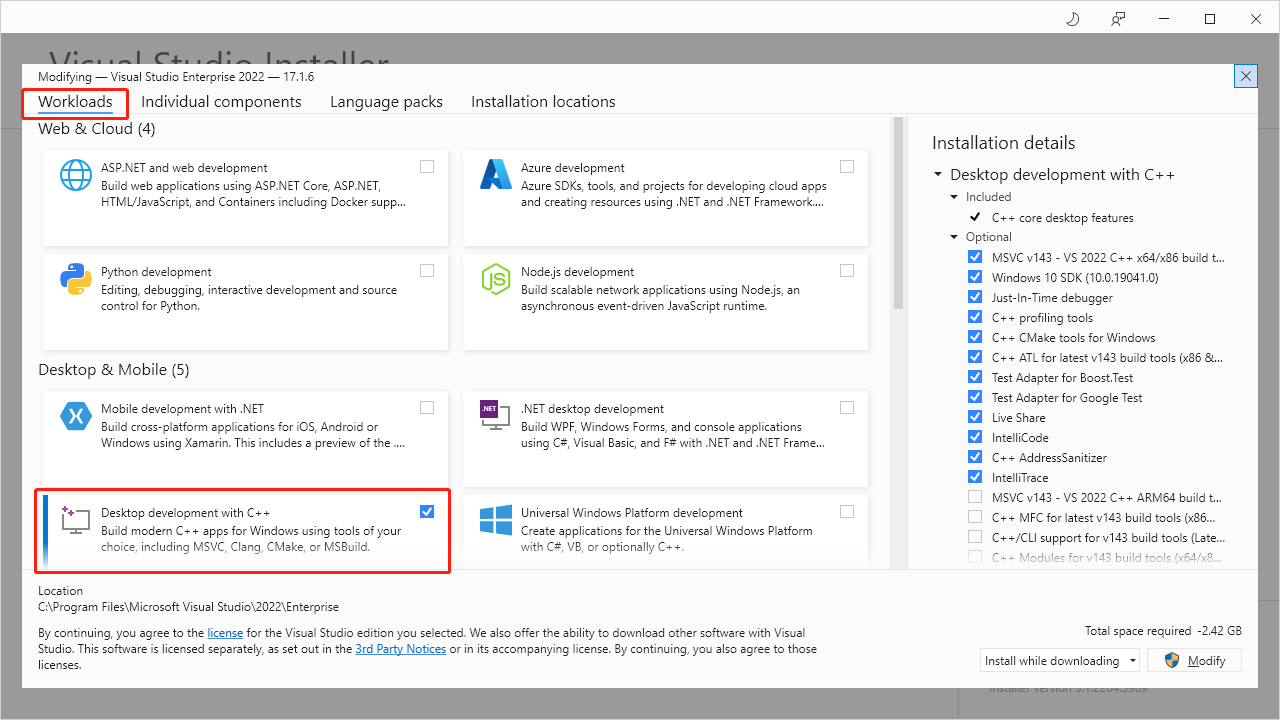
-
Download and install Qt 5.6.2
-
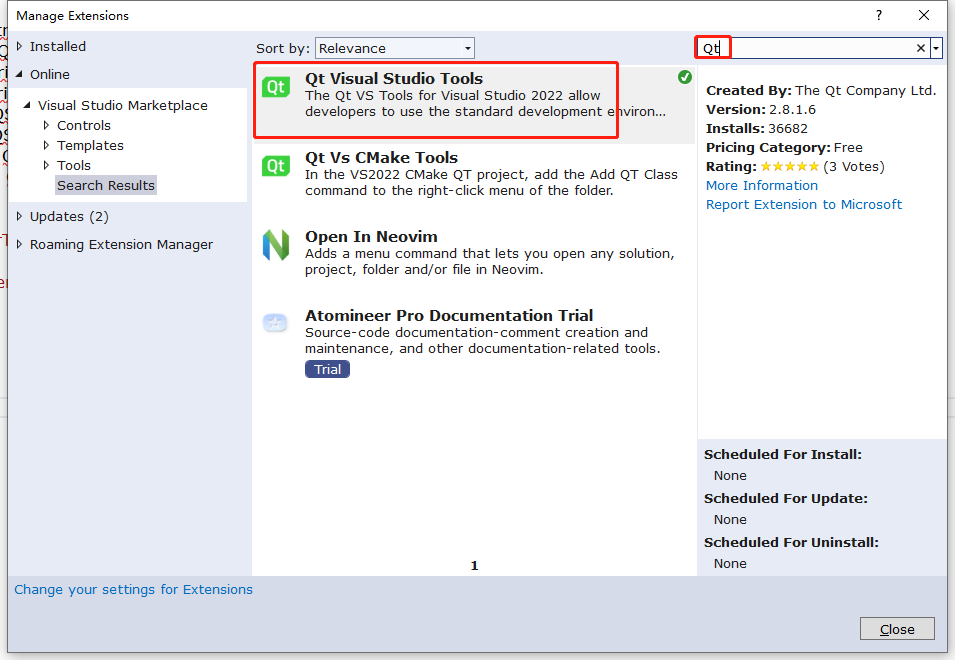
Install
Qt Visual Studio Toolsin VS2022(Menu--Extensions--Manage Extensions--Online--Visual Studio Marketplace):
-
After installing Qt Visual Studio Tools, restart VS2022. Configure Qt version(Menu--Extensions--Qt VS Tools--Qt Versions):
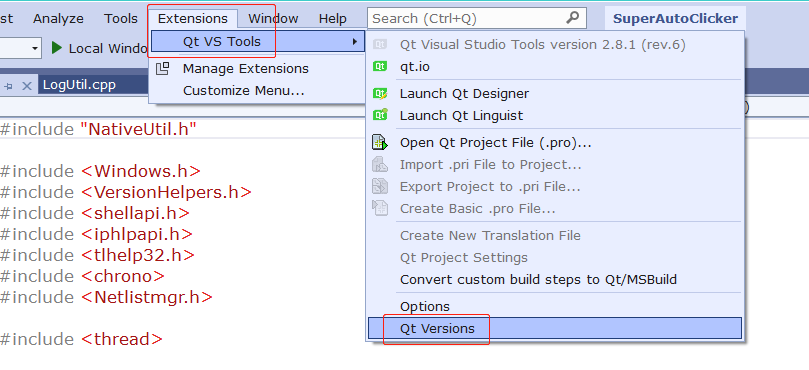
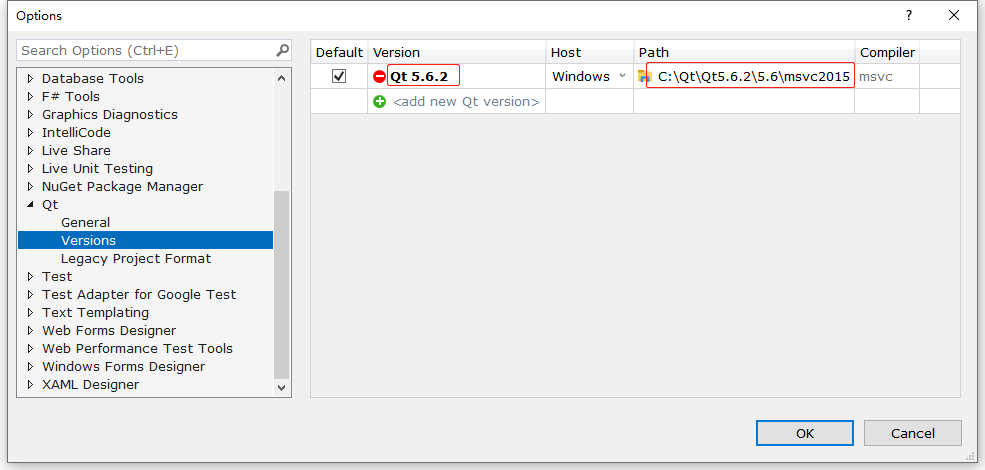
As seen above, the
Versiontag must be set toQt 5.6.2. ThePathtag should be set to<your-Qt-5.6.2-installation-direcotry>\5.6\msvs2015. Then click OK to finish Qt version setup. -
Download and install Python. Python version must be >= 3.8. Make sure you have selected
Add Python to environment variables: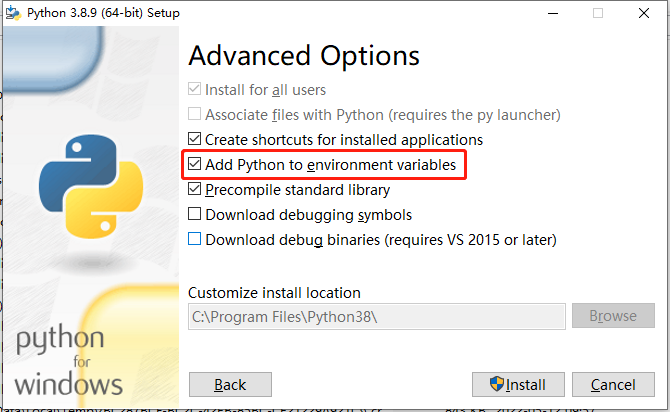
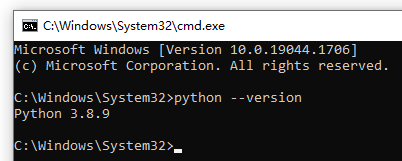
Once finished, open command prompt and type
python --version, then press Enter key.If your Python is installed correctly, you'll see the Python version:
-
Setup unzip command. Add
<your-git-installation-directory>\usr\binto system environment variables: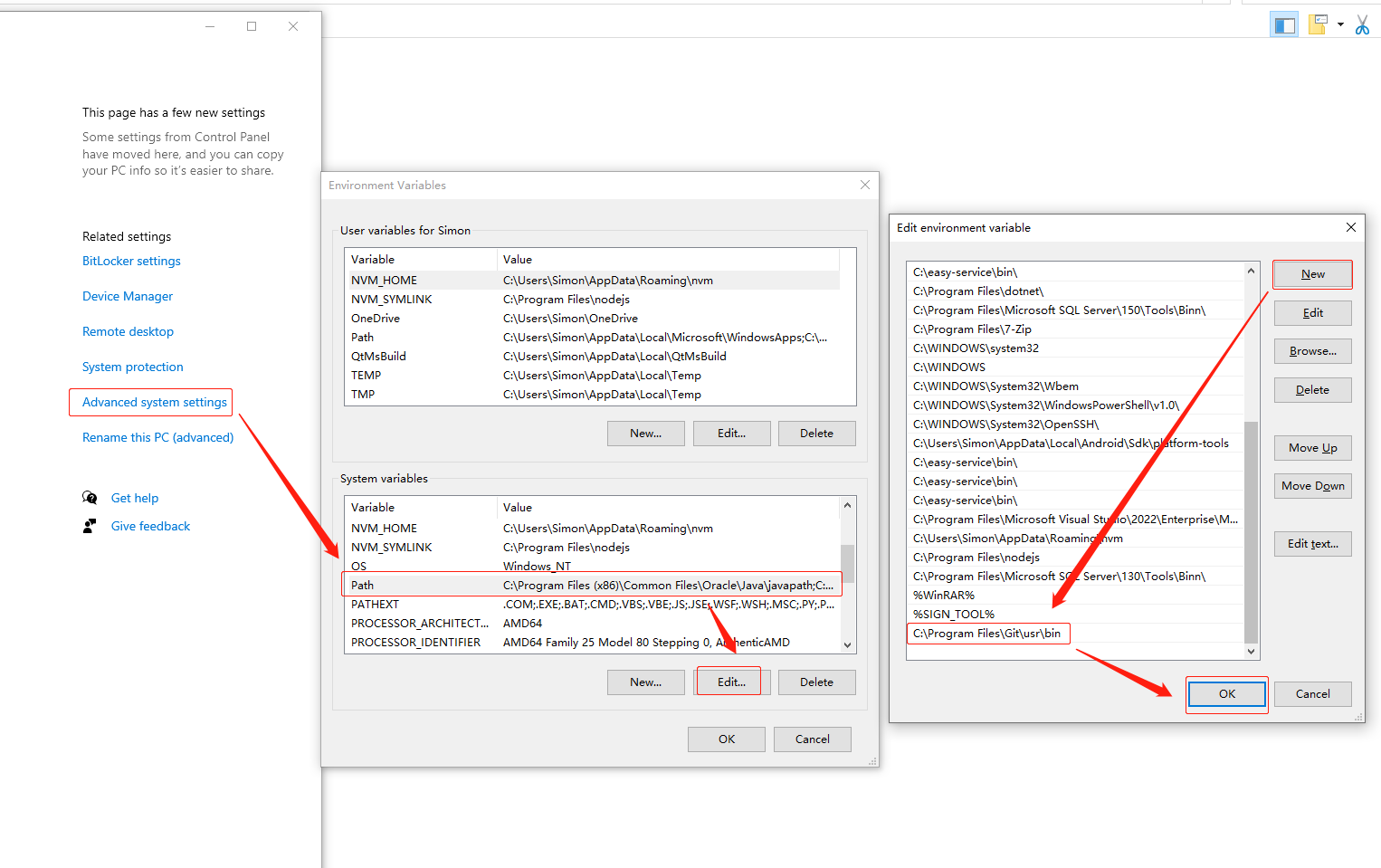
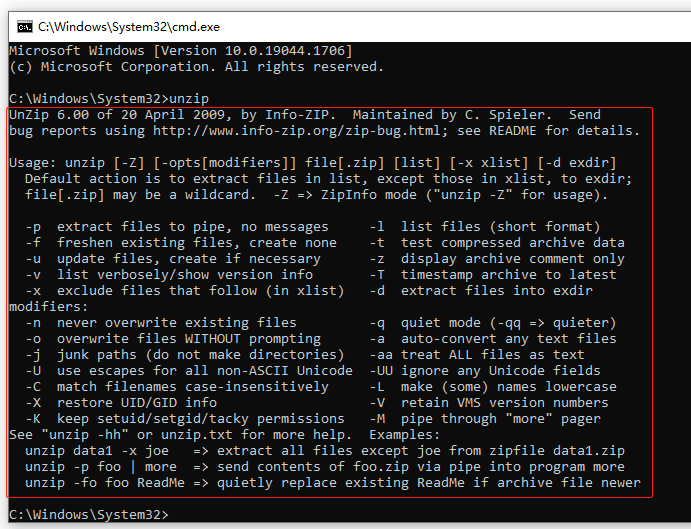
Open command prompt and type
unzipto check whether your git commands is correctly configured.If everything is OK, you'll see the results like below:
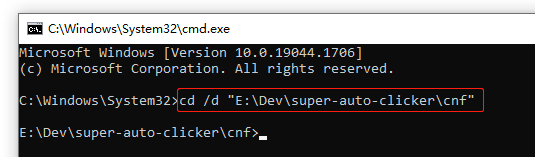
Open command prompt and type cd /d "<your-super-auto-clicker-git-repository>\cnf":
Type python configure_client.py and wait for the configuration steps to finish:
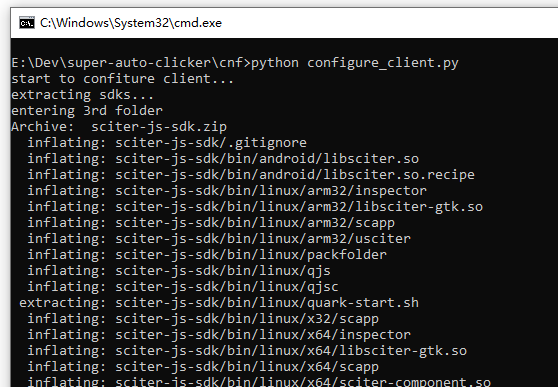
If everything is OK, you'll see the results like below:
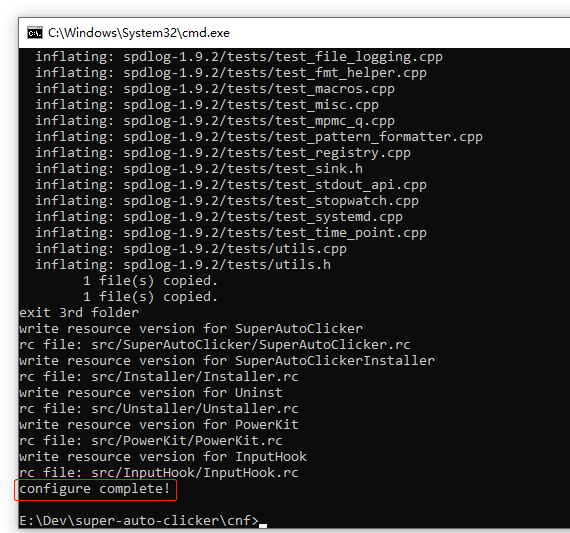
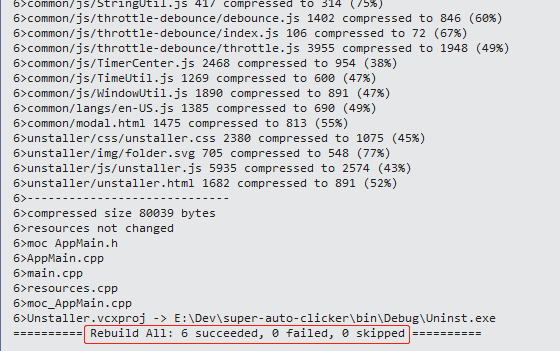
Open SuperAutoClicker.sln using VS2022. Rebuild entire solution and wait.
If everything is OK, you'll see the compilation result:
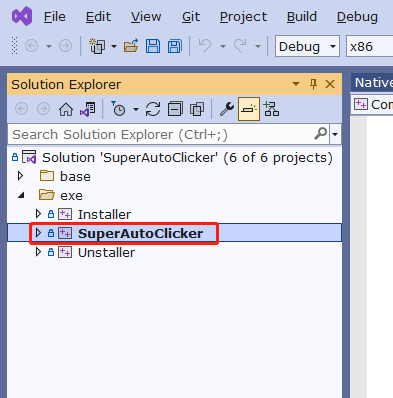
Set SuperAutoClicker as startup project. Start debugging. You'll see the software is finally shown up: