




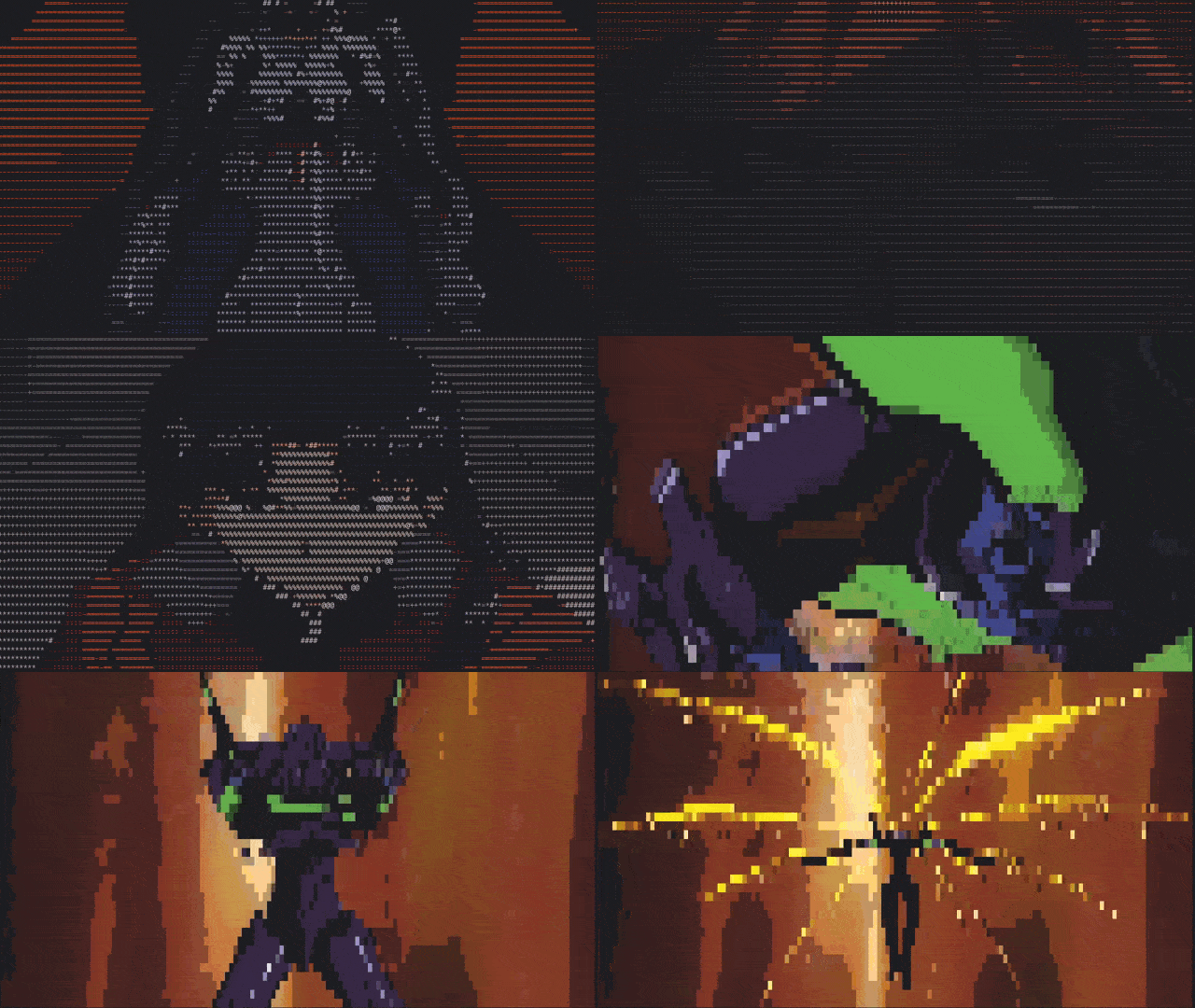
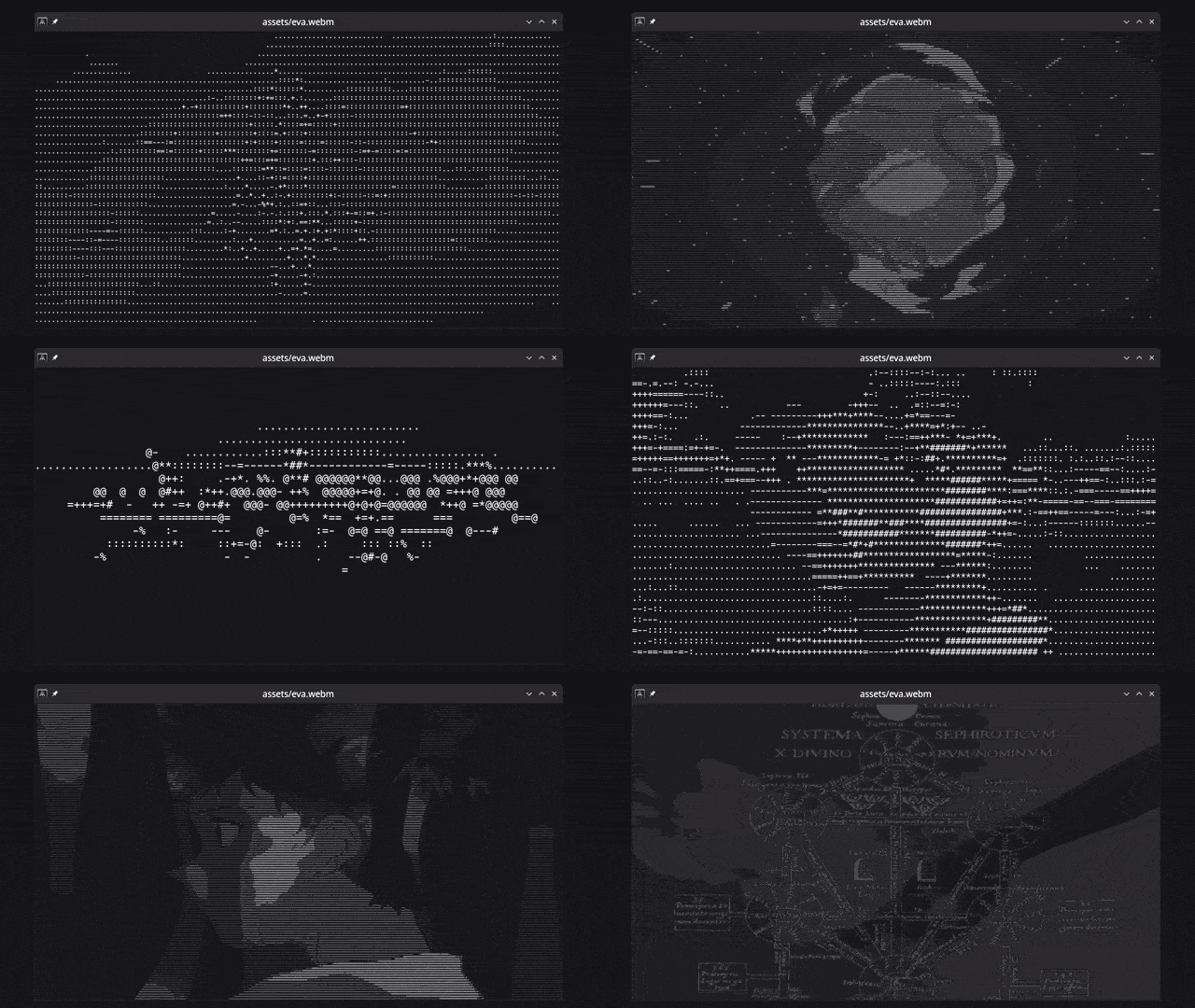
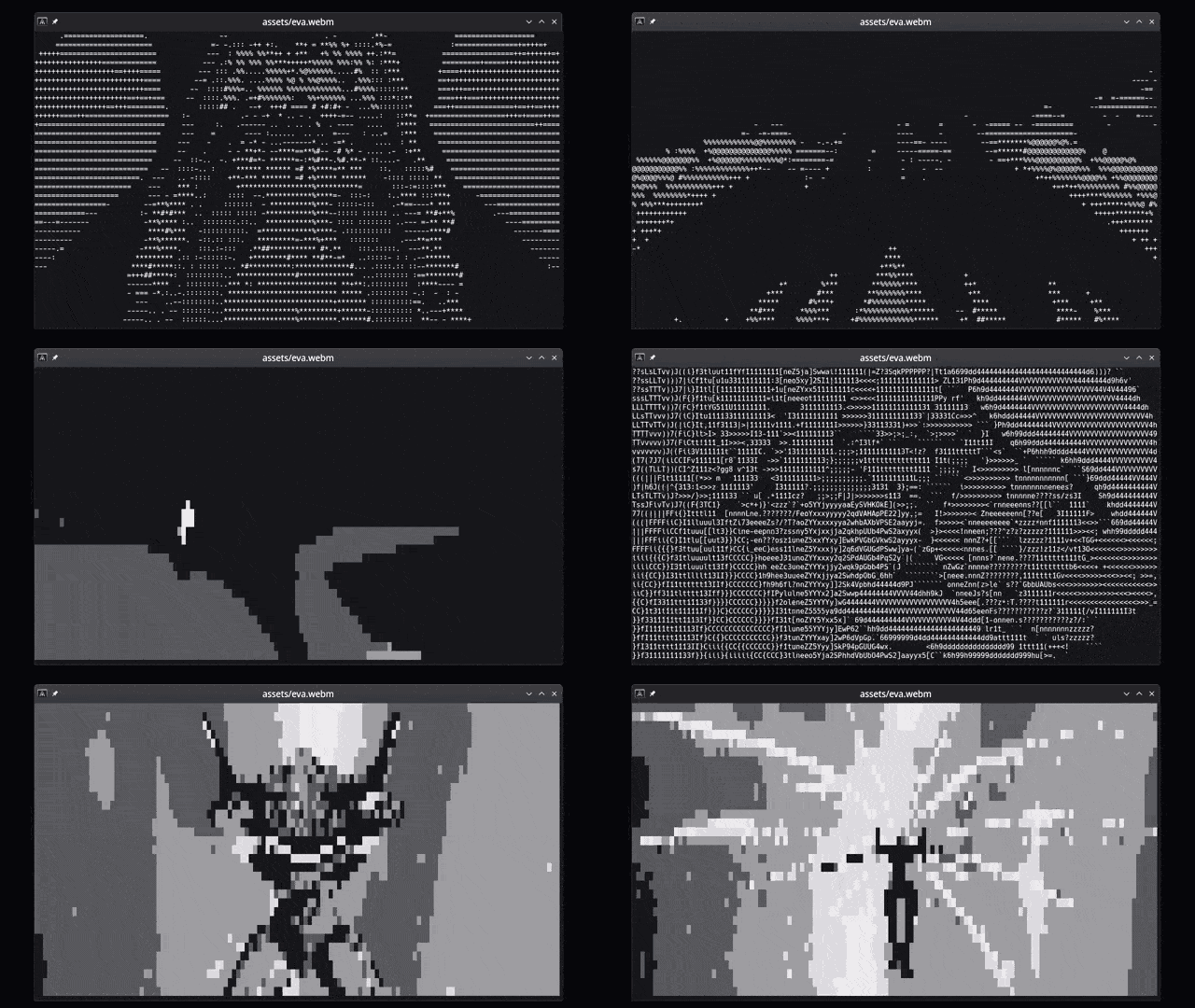
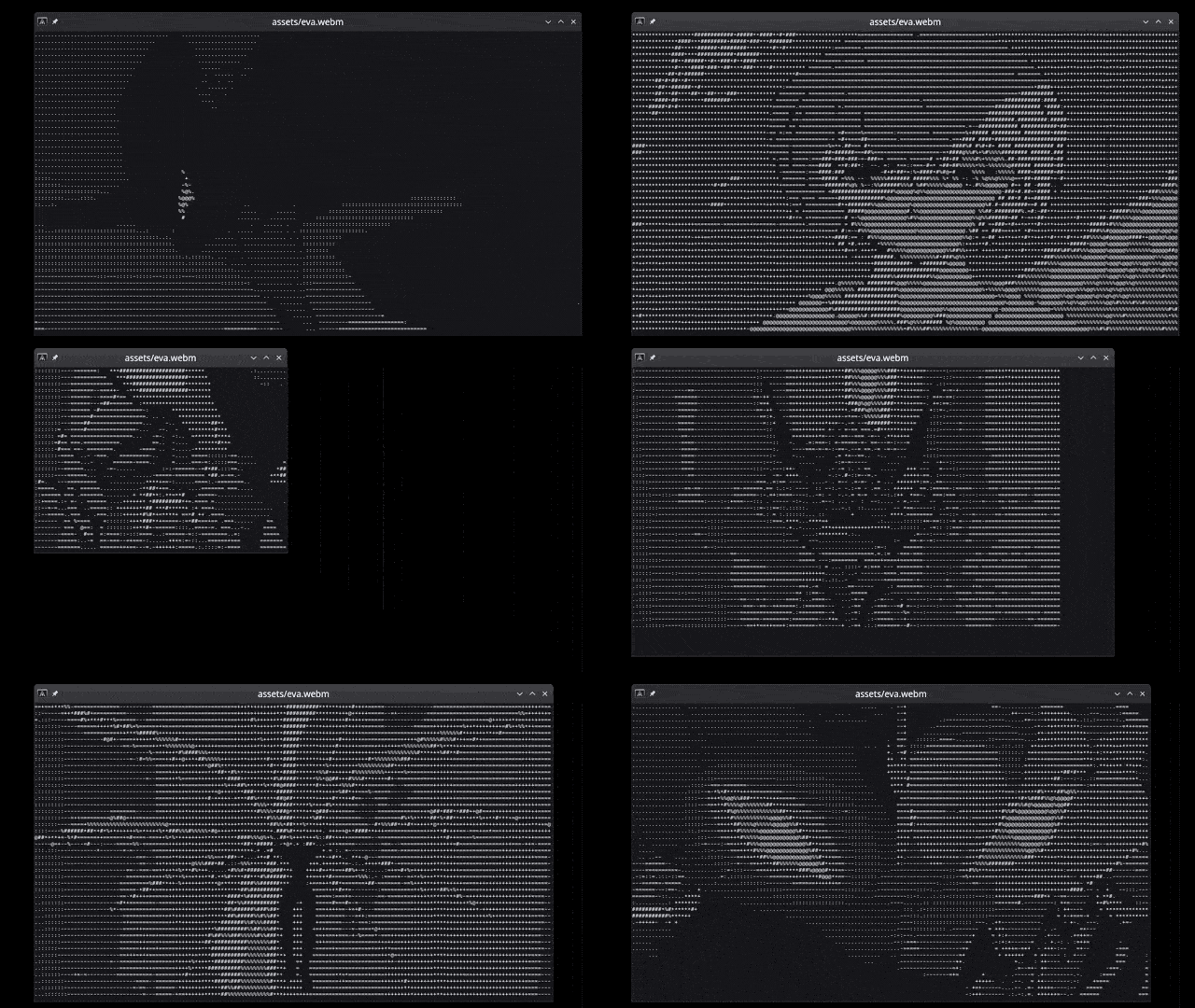
View images, videos (files or YouTube links), webcam, etc directly in the terminal as ASCII. All images you see below are just made by characters on the terminal command line, drawn really fast.
Table of Contents
- You really don't like graphical applications or work on a computer without graphical capabilities.
- You are looking for a quick way to convert visual media to ASCII art.
- You want to watch a video in the terminal, but you don't want to use
mpvorvlcbecause they're too mainstream. - You want to show off your terminal skills to your friends and make them think you're a hacker.
This crate is still in early development, but it already has a lot of features. Here's a list of what it can or can't do:
- Converts and shows any media to ASCII art in the terminal
- Supports images/gifs/videos/webcam and YouTube links
- Any resolution, aspect ratio, and framerate
- Use any character set as supported by your terminal
- Handy pause/unpause and char map selection controls
- RGB Colors (on terminals that support RGB colors)
- Play sounds
- Spark joy
- Full media controls (forward, backwards, etc)
- Subtitles
- Replace a fully-fledged media player
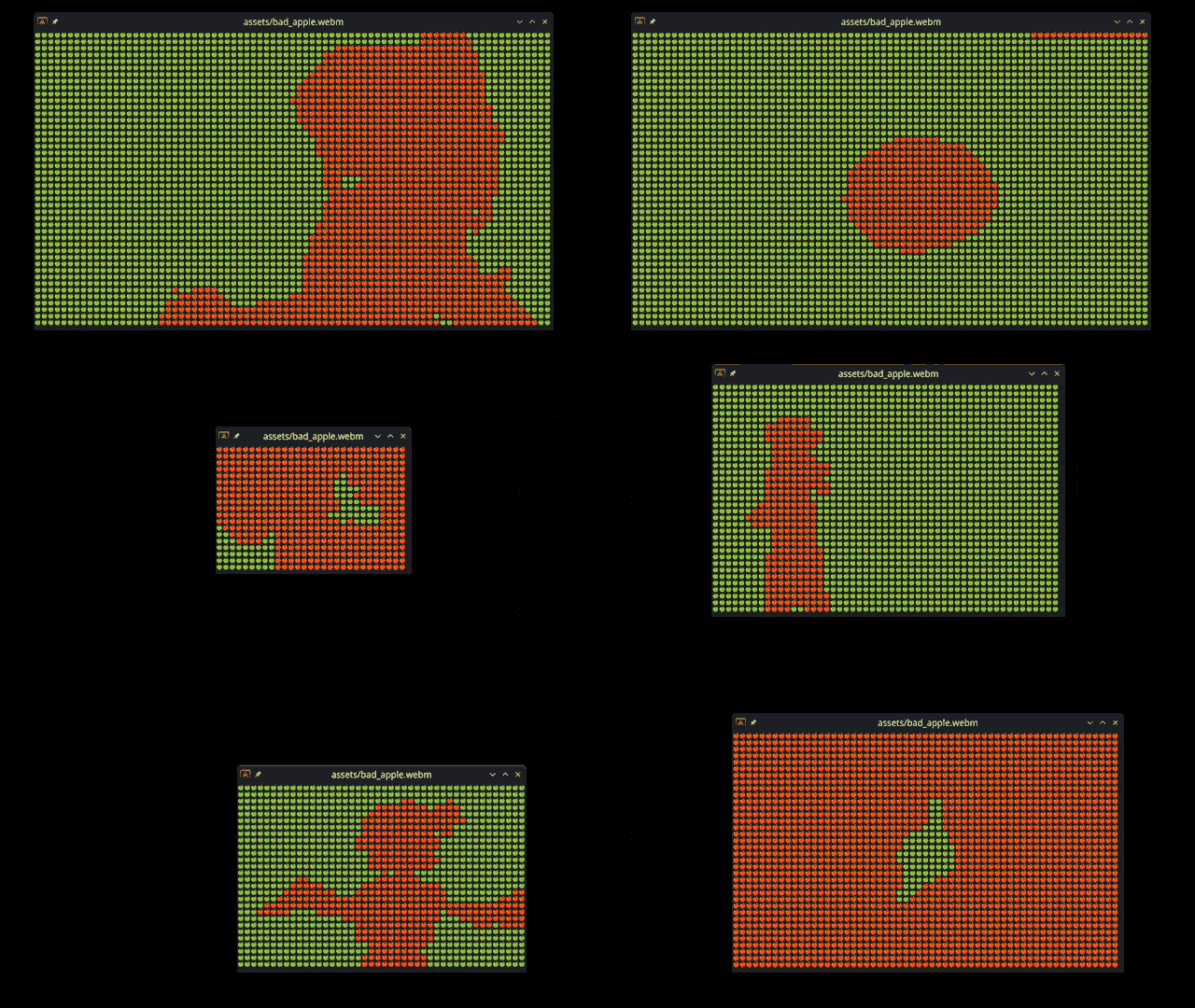
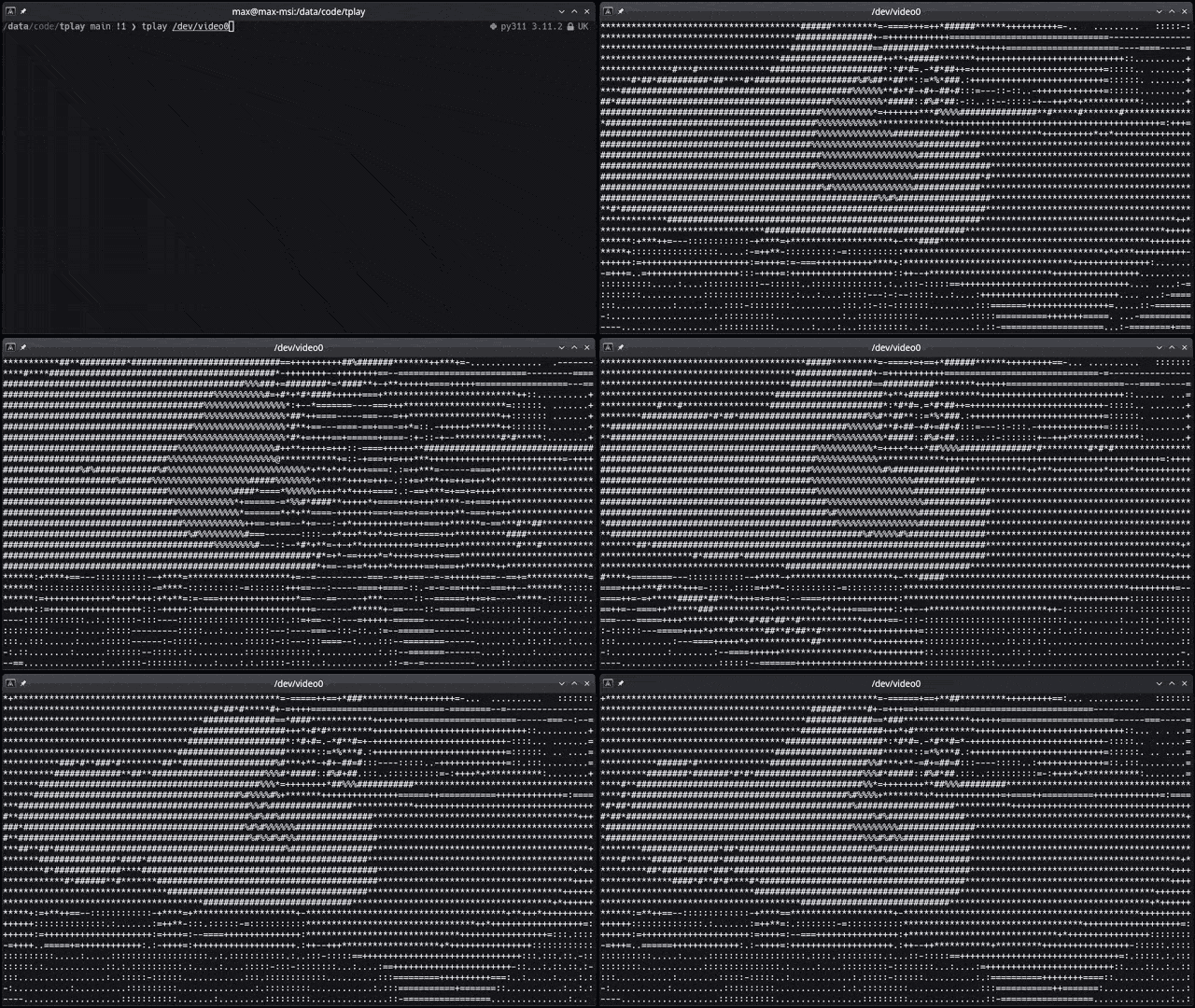
These instructions will get you a copy of the project up and running on your local machine for development and testing purposes.
Being a Rust crate, you will need to have Rust installed on your system. You can find the installation instructions here.
The following dependencies are also required:
- OpenCV 4 Tested with OpenCV 4.6, 4.10, 4.11.
- LLVM
- ffmpeg Tested with FFmpeg 6.1 (Linux) and 7.x (macOS/Homebrew)
- libmpv-dev (development libraries for audio playback and subtitles)
- Optional dependency for YouTube playback support: yt-dlp
They can be simply installed on Linux with your package manager. See below for more details.
If you're on Linux (Ubuntu), you can install all dependencies with your package manager. First install Rust:
sudo apt install curl
curl --proto '=https' --tlsv1.2 -sSf https://sh.rustup.rs | sh
Then install tplay's prerequisite dependencies:
sudo apt install libssl-dev libstdc++-12-dev clang libclang-dev ffmpeg libavfilter-dev libavdevice-dev libasound2-dev yt-dlp libmpv-devAnd install OpenCV following this guide https://docs.opencv.org/4.11.0/d7/d9f/tutorial_linux_install.html.
Do not install via apt libopencv-dev as it's out of date.
Note, I tested this by building openCV from source in the guide above, and at the end I invoked sudo make install. The guide doesn't recommend that and you may want to use an alternative method, but this is how I installed it.
After installing OpenCV from source you may also need to add the folder where you built OpenCV to LD_LIBRARY_PATH, for example: export LD_LIBRARY_PATH=/home/<your user>/build/lib:$LD_LIBRARY_PATH
Minimal setup on macOS using Homebrew. Commands below set the needed env vars, run quick checks, then install.
# 1) Install dependencies
xcode-select -p >/dev/null 2>&1 || xcode-select --install
brew update
brew install pkg-config cmake ninja opencv ffmpeg yt-dlp mpv
# 2) Session-only exports so pkg-config can find FFmpeg/OpenCV
export PKG_CONFIG_PATH="$(brew --prefix)/lib/pkgconfig:$(brew --prefix)/share/pkgconfig:$(brew --prefix ffmpeg)/lib/pkgconfig:$(brew --prefix opencv)/lib/pkgconfig:${PKG_CONFIG_PATH:-}"
export OPENCV_INCLUDE_PATHS="$(brew --prefix opencv)/include/opencv4"
export OPENCV_LINK_PATHS="$(brew --prefix opencv)/lib"# 3) Quick checks (should print versions)
pkg-config --modversion libavutil
pkg-config --modversion opencv4# 4) Install / update
cargo install tplay # fresh install
# or
cargo install tplay --force # update existingTroubleshooting (one-off FFmpeg selection): If the FFmpeg check fails, try Homebrew’s versioned formula for this command only:
brew install ffmpeg@7
PKG_CONFIG_PATH="$(brew --prefix ffmpeg@7)/lib/pkgconfig:$PKG_CONFIG_PATH" cargo install tplayThe crate can run on Windows and all prerequisites (opencv, ffmpeg) can be installed with vcpkg. However, the installation/setup process is lengthy and prone to errors. Performance is also very poor. Save yourself a headache: use WSL and follow the Linux instructions.
You can install it on Arch Linux using aur by running the following commands (using paru):
paru -S tplay-gitWith your contribution and support it can be made available on other distros as well :).
You can install the tplay command line tool by running the following command:
# Install the tplay command line tool
cargo install tplay
So that you can run it from anywhere as
tplay <media> [options]# Clone the repository
git clone https://github.com/maxcurzi/tplay.git
# Change to the project directory
cd tplay
# (optional) Build the project
cargo build --release
# (optional) Run the tests
cargo test
# Run the project (use --release for faster performance)
cargo run --release -- <media> [options]By default, the crate uses MPV (libmpv-dev) for audio playback and subtitles.
For MPV 0.34 instead of 0.35+:
cargo build --release --no-default-features --features mpv_0_34Alternative rodio backend (no playback speed control or pitch preserving):
cargo build --release --no-default-features --features rodio_audiotplay <media> [options]
| Argument | Description |
|---|---|
media |
Name of the file or stream to be processed (required). |
-f, --fps |
Forces a specific frame rate (--fps 23.976). |
-c, --char-map |
Custom lookup character table to use for the output (default: .:-=+*#%@). |
-g, --gray |
Start in grayscale mode |
-w, --w-mod |
Experimental width modifier for certain characters such as emojis (default: 1). Use a value of 2 if your char_map is composed of emojis. |
-a, --allow-frame-skip |
Experimental frame skip flag. Try to use it if the playback is too slow. |
-n, --new-lines |
Experimental flag. Adds newline and carriage return \n\r at the end of each line (except the last). Terminals wrap around and don't need new lines, but if you want to copy-paste the text outside the terminal you may want them. The output would be a single long string otherwise. Uses more CPU. |
-l, --loop-playback |
Loop video/gif forever (default: do not loop - play once) |
-b, --browser |
It's used when downloading videos from YouTube, maps to yt-dlp cookies-from-browser to prove YouTube you're not a robot. Defaults to "firefox". Supported browsers are: brave, chrome, chromium, edge, firefox, opera, safari, vivaldi, whale |
Substitute tplay with cargo run --release -- if you plan to run from source.
# Run it
tplay <media> [options]

# Example: local image
tplay ./image.png

# Example: local gif
tplay ./image.gif

# Example: local video
tplay ./video.mp4

# Example: remote video (YouTube)
tplay https://www.youtube.com/watch?v=dQw4w9WgXcQ

# Example: remote video (Other)
tplay https://media.developer.dolby.com/Atmos/MP4/shattered-3Mb.mp4

# Example: YouTube video, with different char maps
tplay https://www.youtube.com/watch?v=fShlVhCfHig --char-map " ░▒▓█"

# Example: YouTube video, with different char maps (use w-mod to adjust width when using emoji-based char maps)
tplay https://www.youtube.com/watch?v=FtutLA63Cp8 --char-map "🍎🍏❤️😊" --w-mod 2

# Example: webcam on Linux (YMMV on other OSes)
tplay /dev/video00-9- change character mapspace- toggle pause/unpauseg- toggle grayscale/colorm- toggle mute/unmute←/→- seek backward/forward 5 seconds[/]- decrease/increase playback speed by 0.25x,/.- decrease/increase playback speed by 0.1x (fine control)\- reset playback speed to 1.0xc- cycle through subtitle tracksC(Shift+c) - toggle subtitles on/offq- quit
Speed range: 0.5x to 2.0x with pitch-preserving audio.
[/]- 0.25x adjustments,/.- 0.1x fine adjustments\- reset to 1.0x
Note: Requires MPV backend (default). Rodio backend does not support speed control.
Subtitles appear at the bottom of the terminal. Use c to cycle tracks and Shift+C to toggle visibility.
Note: Requires MPV backend (default). Rodio backend does not support subtitles.
- Videos played through the Konsole terminal may have reduced performance. This is due to the way Konsole handles terminal output. If you experience this issue, try using a different terminal emulator. I recommend Alacritty for great performance.
- Media playback is CPU-intensive. To improve performance, increase the font size, reduce the terminal window size, or run with the
-a/--allow-frame-skipflag.
This is my ASCII media player: there are many like it, but this one is mine.
For other ASCII media players, check out: https://github.com/search?q=ascii+player&type=repositories
Contributions are welcome! Please open an issue or submit a pull request. Some ideas:
- Reduce external dependencies and streamline the installation process.
- Investigate migration from OpenCV to FFmpeg.
- More media controls (jump forward, jump backwards, loop, etc.).
- Testing and feedback on installing and running it on other OSes.
- Let me know if you have any other ideas!
This project is licensed under the MIT License - see the LICENSE file for details.
Your Scientists Were So Preoccupied With Whether Or Not They Could, They Didn’t Stop To Think If They Should
Mostly did it for fun while learning Rust. I also wanted to see if it was possible to make a video player that could run in the terminal. I think it's pretty cool that you can play videos in the terminal now. I hope you enjoy it too!
Thanks to the following people for their contributions and support:


