
A modern, high-performance touch typing practice tool built with Vue 3, TypeScript, and Vite.
Live Demo: isaaceliape.github.io/typee
- Features
- Tech Stack
- Project Status
- Quick Start
- Project Setup
- Development
- Architecture
- Code Quality
- Contributing
- Tools & Commands
- CI/CD Pipeline
- Performance
- Troubleshooting
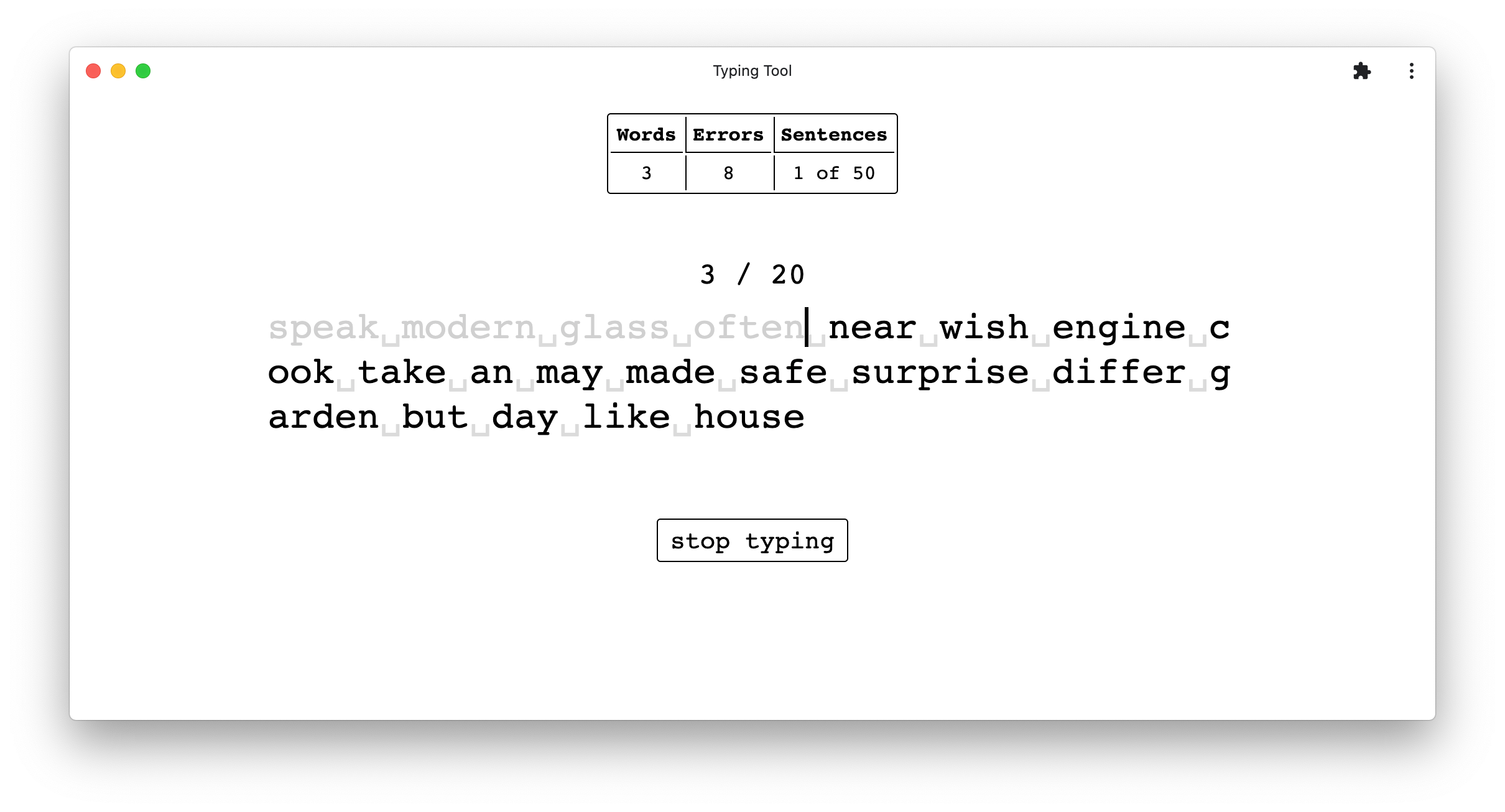
- Real-time typing practice - Type along with dynamically generated text
- Error tracking - Real-time error counting and display
- Word counter - Track words typed per sentence
- Progress monitoring - See typing progress and sentence completion
- Multiple font families - Choose your preferred typing font
- Font size adjustment - Customize text size for comfort
- Dark/Light mode support - Toggle between themes
- Responsive design - Works on desktop and tablet devices
- Keyboard overlay - Visual keyboard guide showing next keys to type
- Configurable sentence length - Adjust words per sentence
- Sentence progression - Automatic advancement through sentences
- Reset functionality - Quick reset to start fresh (Tab key)
- Menu system - Easy access to settings and controls
- Help/Info panel - Built-in documentation
- Vue 3 - Progressive JavaScript framework with Composition API
- TypeScript - Type-safe development with strict mode enabled
- Vite - Next-generation build tool with hot module replacement
- SCSS - Advanced CSS preprocessing for styling
- Pinia - Lightweight state management (Vue 3 official state management library)
- BUN - Fast JavaScript runtime and package manager (10x faster than NPM)
- ESLint - Code quality and style enforcement
- Vitest - Unit testing framework
- @vue/test-utils - Vue component testing utilities
- Vite - Production build optimization
- GitHub Pages - Live deployment
| Category | Status | Details |
|---|---|---|
| Type Safety | ✅ 100% | Full TypeScript, no any types |
| Test Coverage | ✅ 79 Tests | 8 test files, all passing |
| ESLint Compliance | ✅ 0 Errors | Clean code quality |
| Bundle Size | ✅ Optimized | 11.14 KB JS + 1.46 KB CSS |
| Build Time | ✅ 700ms | Fast production builds |
| Performance | ✅ Optimized | Code splitting, tree-shaking |
- ✅ 8 CRITICAL TypeScript issues (#10-17)
- ✅ 2 HIGH priority issues (#18-19)
- ✅ 1 HIGH priority migration (#28 - NPM to BUN)
- ✅ 2 MEDIUM priority issues (#8, #26)
- ✅ 19 CLOSED issues total
- 🔵 EPIC #27: Application Progress Monitoring (tracking only)
This project requires BUN as the package manager - a modern, fast alternative to NPM.
# macOS
brew install bun

# Windows (PowerShell)
powershell -c "irm bun.sh/install.ps1|iex"

# Linux
curl -fsSL https://bun.sh/install | bash

# Verify installation
bun --version# Install dependencies
bun install
# Start development server (http://localhost:5173)
bun run dev
# Build for production
bun run build
# Preview production build (http://localhost:4173)
bun run previewbun installStart the Vite development server with hot module replacement (HMR):
bun run devServer runs on http://localhost:5173
The development server includes:
- Hot Module Replacement (HMR) - Changes reflect instantly without page reload
- Source Maps - Full debugging support with TypeScript source mapping
- Fast Refresh - Only modified components re-render
Build for production:
bun run buildThe build command:
- Runs all tests (
bun test) - Compiles TypeScript to JavaScript
- Minifies and optimizes assets
- Outputs to
dist/directory
Preview production build locally:
bun run previewPreview server runs on http://localhost:4173
The project is configured for automatic deployment to GitHub Pages via GitHub Actions. Push to the main branch to trigger deployment.
typee/
├── src/
│   ├── components/          # Vue components
│   │   ├── App.vue
│   │   ├── TextRenderer.vue # Main typing component
│   │   ├── InfoPanel.vue    # Status display
│   │   ├── Menu.vue         # Settings menu
│   │   ├── BurgerMenu.vue   # Mobile menu
│   │   ├── Keymap.vue       # Keyboard guide
│   │   ├── Letter.vue       # Individual letter display
│   │   └── ToggleButton.vue # UI buttons
│   ├── store/
│   │   └── app.ts           # Pinia state management
│   ├── __tests__/           # Unit tests (79 tests)
│   ├── assets/              # Images and data
│   │   ├── 1000EnglishWords.js
│   │   └── pangrams.js
│   ├── api.ts               # External data fetching
│   ├── helpers.ts           # Utility functions
│   ├── main.ts              # Application entry point
│   └── App.vue              # Root component
├── public/                  # Static assets
├── index.html               # HTML template
├── vite.config.ts           # Vite configuration
├── vitest.config.ts         # Vitest configuration
├── tsconfig.json            # TypeScript configuration
├── package.json             # Dependencies
├── bun.lock                 # Dependency lock file (BUN)
└── docs/                    # Development guidelines
Typee is a typing practice application designed to help users improve their typing speed and accuracy. The application provides real-time feedback on typing performance with visual keyboard guidance and customizable difficulty settings.
Typing Engine:
- Real-time character-by-character validation
- Error detection and tracking with visual feedback
- Automatic sentence progression when current sentence is completed
- Support for custom text sources (words, pangrams, external APIs)
User Interface:
- Customizable fonts (multiple font families available)
- Adjustable font sizes for comfortable viewing
- Light/Dark theme toggle
- Responsive design for desktop and tablet
- Visual keyboard overlay showing next character to type
Customization:
- Configurable words per sentence (adjust difficulty)
- Font selection from available families
- Font size adjustment
- Text source selection (English words, pangrams)
Statistics & Feedback:
- Real-time error count display
- Words typed counter
- Current position indicator
- Sentence completion progress
The core component that handles typing input and manages the typing session. It:
- Listens for keyboard events
- Validates user input against expected text
- Dispatches state updates to the Pinia store
- Renders the text with proper styling for correct/incorrect characters
- Manages Tab key for reset functionality
Centralized state management handling:
currentPos- Current character position in the sentenceerrorCount- Total errors in current sessionsentencePos- Current sentence indexselectedFont- Active font selectionfontSize- Current font sizewordsPerSentence- Difficulty settingshowCapitalLetters- Capitalization mode toggledisableTyping- Pause/resume statemenuOpen- Menu visibility toggledarkMode- Theme preference
Individual character component that:
- Displays single character with appropriate styling
- Highlights based on state (correct, incorrect, current, pending)
- Updates reactively as user types
Shows real-time statistics:
- Error count
- Current position
- Words typed in current sentence
- Sentence progress indicator
Visual keyboard overlay displaying:
- Next character to type (highlighted)
- Keyboard layout reference
- Key highlighting during typing
Customization interface for:
- Font family selection
- Font size adjustment
- Words per sentence configuration
- Text source selection
- Theme toggle (Light/Dark mode)
Mobile-optimized menu with collapsible interface for smaller screens
Reusable button component for toggling features and settings
User Input
    ↓
TextRenderer captures keystroke
    ↓
Validates against expected character
    ↓
Updates Pinia store (errors, position, etc.)
    ↓
Store notifies all subscribed components
    ↓
Letter components re-render with new styles
    ↓
InfoPanel updates statistics
    ↓
Keymap updates next character guide
    ↓
Visual feedback displayed to user
The application uses Pinia for predictable state management. All state modifications go through store actions, ensuring consistency and testability.
Example state update flow:
// Component detects typing error
TextRenderer.vue → store.incrementError() →
Letter.vue re-renders with error class →
InfoPanel.vue displays updated count- Imports: ES6 imports, grouped by type (Pinia, helpers, components)
- Naming: camelCase for variables/functions, PascalCase for components
- Formatting: 2-space indentation, no semicolons, single quotes
- Types: TypeScript strict mode, no implicit
any - Error Handling: try/catch for async, console logging for debugging
- Vue Components: Composition API with
<script setup>, reactive state - Store (Pinia): camelCase state, computed getters, typed actions
- Styling: SCSS in components, BEM-like class naming
- Components:
PascalCase.vue - Utilities:
camelCase.ts - Tests:
*.spec.tsor*.test.ts - Styles: SCSS in component
<style>blocks
Adding a new component:
- Create component file in
src/components/with PascalCase name - Define props and emits with TypeScript types
- Use Composition API with
<script setup> - Add corresponding test file in
src/__tests__/ - Import and use in parent component
Modifying store state:
- Update state property definition in
src/store/app.ts - Create action method for state mutation
- Update all components that use this state
- Add/update tests for the state change
Adding styling:
- Use SCSS within component
<style>blocks - Prefix classes with component name (BEM convention)
- Use CSS variables for theming consistency
- Ensure dark mode compatibility
App.vue (Root)
├── TextRenderer.vue (Main typing interface)
│   ├── InfoPanel.vue (Statistics display)
│   ├── Keymap.vue (Keyboard guide)
│   └── Letter.vue (Repeated for each character)
├── Menu.vue (Settings and customization)
├── BurgerMenu.vue (Mobile menu)
└── ToggleButton.vue (UI controls)
The application uses Pinia for predictable state management. All state modifications go through store actions, ensuring consistency and testability.
Store Architecture:
// src/store/app.ts - Pinia store using Composition API
export const useAppStore = defineStore('app', () => {
  // State (use ref for reactive values)
  const errorCount = ref(0)
  const selectedFont = ref('Ubuntu')

  // Getters (use computed for derived state)
  const getSentencesCount = computed(() => sentences.value.length)

  // Actions (regular functions that modify state)
  const setErrorCount = (payload: number) => {
    errorCount.value = payload
  }

  const increaseErrorCount = () => {
    errorCount.value += 1
  }

  return {
    errorCount,
    selectedFont,
    getSentencesCount,
    setErrorCount,
    increaseErrorCount,
  }
})
Store Usage in Components:
import { useAppStore } from '@/store/app'

export default defineComponent({
  setup() {
    const store = useAppStore()

    // Access state (automatically reactive)
    const errorCount = store.errorCount

    // Access getters
    const sentenceCount = store.getSentencesCount

    // Call actions
    const handleIncreaseError = () => {
      store.increaseErrorCount()
    }

    return { errorCount, sentenceCount, handleIncreaseError }
  }
})
Key Store Files:
src/store/app.ts- Main application store with Composition API patternsrc/store/types.ts- TypeScript type definitions for store statesrc/store/utilities.ts- Factory functions and helpers for consistent store patterns
Store Naming Conventions:
| Element | Convention | Examples |
|---|---|---|
| State | camelCase | errorCount, selectedFont, menuOpen |
| Getters | camelCase with get prefix |
getSentencesCount, getErrorRate |
| Actions | camelCase with verb prefix | setErrorCount, toggleMenuOpen, increaseErrorCount |
| Types | PascalCase | Font, GameState, AppState |
Example state update flow:
User Input
    ↓
TextRenderer captures keystroke
    ↓
Validates against expected character
    ↓
Updates Pinia store (store.increaseErrorCount())
    ↓
Store notifies all subscribed components
    ↓
Letter components re-render with new styles
    ↓
InfoPanel updates statistics
    ↓
Visual feedback displayed to user
For detailed store documentation, see:
docs/pinia-store-architecture.md- Complete store architecture guidedocs/naming-conventions.md- Naming conventions for storesdocs/store-examples-migration.md- Store examples and migration guide
┌─────────────────────────────────────────────────────────────┐
│                     User Input (Keyboard)                    │
└────────────────────────┬────────────────────────────────────┘
                         │
                         ↓
              ┌──────────────────────┐
              │  TextRenderer.vue    │
              │  - Capture keystroke │
              │  - Validate input    │
              └──────────┬───────────┘
                         │
                         ↓
              ┌──────────────────────┐
              │   Pinia Store        │
              │  - Update state      │
              │  - Validate logic    │
              └──────────┬───────────┘
                         │
        ┌────────────────┼────────────────┐
        ↓                ↓                ↓
   ┌────────────┐  ┌──────────┐  ┌──────────────┐
   │ Letter.vue │  │InfoPanel │  │  Keymap.vue  │
   │  Re-render │  │ Update   │  │ Update next  │
   │  with new  │  │ stats    │  │ character    │
   │  styles    │  │ display  │  │ highlight    │
   └────────────┘  └──────────┘  └──────────────┘
        │                │                │
        └────────────────┴────────────────┘
                         │
                         ↓
              Visual Feedback to User
The application uses two patterns for component communication:
- Store (Pinia) - For global state and cross-component communication
- Props/Emits - For direct parent-child component communication
Example - Adding a character:
User types 'a' →
TextRenderer captures keystroke →
Validates against expected character →
Calls store.updateCharacter('a') →
Store updates currentPos and errorCount →
Letter.vue reacts to position change →
InfoPanel.vue reacts to error count change →
UI updates with visual feedback
User Types Incorrect Character
        │
        ↓
TextRenderer validates input
        │
  ┌─────┴─────┐
  ↓           ↓
Correct     Incorrect
  │           │
  │    store.incrementError()
  │    Letter shows error state
  │    InfoPanel updates count
  ↓
UI reflects error state
Action triggered (e.g., user types)
        │
        ↓
Store action executes
        │
        ↓
State property updated
        │
        ↓
Vue reactivity triggers re-render
        │
        ├─→ Computed properties recalculate
        ├─→ Watchers execute
        └─→ Components with changed props re-render
        │
        ↓
DOM updates (virtual DOM reconciliation)
        │
        ↓
Browser re-paints affected elements
        │
        ↓
Visual feedback shown to user
The project uses Vitest with Vue Test Utils for comprehensive component testing. Our testing approach includes:
- Unit Tests - Test individual functions and components
- Component Tests - Test Vue components in isolation
- Integration Tests - Test component interactions through Pinia store
- Snapshot Tests - Verify component output stability
Run all tests:
bun testRun tests with UI:
bun run test:uiRun tests with coverage:
bun run test:coverageRun single test file:
bun test -- src/__tests__/helpers.test.ts- 8 test files with comprehensive coverage
- 79 passing tests covering all major components
- Components tested:
- BurgerMenu.vue (9 tests) - Mobile menu functionality
- InfoPanel.vue (11 tests) - Statistics display and updates
- Keymap.vue (16 tests) - Keyboard guide rendering
- Letter.vue (12 tests) - Character display and styling
- Menu.vue (17 tests) - Settings and customization
- ToggleButton.vue (8 tests) - Button functionality
- TextRenderer.vue (3 tests) - Main typing interface
- Helper functions (4 tests) - Utility function testing
When adding new features, ensure:
- Create corresponding test file:
ComponentName.spec.ts - Test component props, emits, and user interactions
- Mock Pinia store for component isolation
- Test edge cases and error scenarios
- Maintain or improve code coverage
- Run
bun testbefore committing
Example test structure:
import { describe, it, expect } from 'vitest'
import { mount } from '@vue/test-utils'
import { createPinia, setActivePinia } from 'pinia'
import MyComponent from '@/components/MyComponent.vue'

describe('MyComponent.vue', () => {
  beforeEach(() => {
    setActivePinia(createPinia())
  })

  it('renders correctly', () => {
    const wrapper = mount(MyComponent)
    expect(wrapper.exists()).toBe(true)
  })

  it('handles user interaction', async () => {
    const wrapper = mount(MyComponent)
    await wrapper.find('button').trigger('click')
    expect(wrapper.emitted('click')).toHaveLength(1)
  })
})Run ESLint checks:
bun run lintThe project enforces:
- Vue 3 essential rules
- TypeScript best practices
- No unused variables (with
_prefix exception) - No explicit
anytypes (strict type checking) - Proper import ordering
- Strict mode enabled - Catches more errors at compile time
- No
anytypes allowed - Full type coverage required - Full type safety throughout the codebase
- Proper interfaces for complex objects
- Generic types for reusable components
TypeScript configuration (tsconfig.json):
- Target: ES2020
- Module: ESNext
- Strict mode enabled
- Source maps enabled for debugging
- Lib includes DOM and ES2020
The project includes built-in performance optimizations:
- Vue 3's efficient reactivity system (Proxy-based)
- Pinia's minimal store overhead
- Vite's optimal code splitting
- CSS optimization and minification
- Asset lazy loading support
Monitor performance with:
- Browser DevTools Performance tab
- Lighthouse audits
- Network tab for asset sizes
- Clone the repository:
git clone https://github.com/isaaceliape/typee.git
cd typee- Install BUN (if not already installed):
curl -fsSL https://bun.sh/install | bash- Install dependencies:
bun install- Start development server:
bun run dev- Open browser to http://localhost:5173
Following conventional commit standards and atomic commits:
# 1. Create a feature branch
git checkout -b feature/new-feature-name

# 2. Make changes following code style guidelines
# Edit files in src/

# 3. Run tests to ensure quality
bun test

# 4. Run linter to check code style
bun run lint

# 5. Build to verify production build
bun run build

# 6. Commit with descriptive message
git commit -m "feat(typing): add new feature description"

# 7. Push to remote
git push -u origin feature/new-feature-name

# 8. Create pull request on GitHubFollow the format: <type>(<scope>): <subject>
Types:
feat- New featurefix- Bug fixdocs- Documentation updatestyle- Code style change (no logic change)refactor- Code refactoringtest- Test addition/modificationchore- Build process, dependencies, etc.
Example commits:
feat(store): add undo/redo functionality
fix(typing): correct error counting logic
docs(readme): update installation instructions
test(letter): add edge case test for special characters
Before submitting a pull request, ensure:
- All tests pass:
bun test - No linting errors:
bun run lint - Build succeeds:
bun run build - Code follows style guidelines
- TypeScript has no errors
- New features include tests
- README updated if applicable
- Commit messages follow conventional format
- No sensitive data committed
Use GitHub Issues to track work. Tools are available in tools/ directory:
# Create an issue with Scrum template
./tools/create-issue.sh --title "Feature name" --priority HIGH \
  --template scrum --story-points 8 --labels "feature"

# Get issue details
./tools/get-issue-by-id.sh 26

# List all open issues
./tools/get-all-issues.sh --state open

# Update issue
./tools/update-issue-by-id.sh 26 --labels "in-progress"

# Close issue
./tools/close-issue-by-id.sh 26 --reason "Completed"
See tools/README.md for full documentation.
- Keep PRs focused - One feature or fix per PR
- Provide clear description - Explain what and why
- Reference issues - Link to related GitHub issues with
Closes #123 - Request review - Get feedback from team members
- Address comments - Make requested changes and push updates
- Squash commits - Keep history clean before merge
Vue DevTools:
- Install Vue DevTools browser extension
- Inspect component tree and state
- Monitor Pinia store mutations
Console Logging:
// Use appropriate console methods
console.log('General information')
console.warn('Warning messages')
console.error('Error messages')
console.debug('Debug-only information')
Network Debugging:
- Open browser DevTools Network tab
- Monitor API calls in
api.ts - Check response status and payload
TypeScript Checking:
# Check for TypeScript errors without building
bun exec tsc --noEmit
Performance Profiling:
- Use browser DevTools Performance tab
- Record typing session
- Analyze frame rate and rendering bottlenecks
Tests failing after changes:
# Clear test cache
bun test --no-cache

# Run with verbose output
bun test -- --reporter=verbose
Component not updating:
- Check if state is being updated in store
- Verify component is subscribed to store
- Use Vue DevTools to inspect reactive state
Styling issues:
- Ensure SCSS is properly scoped to component
- Check for conflicting global styles
- Use CSS variables for theme consistency
| Command | Purpose |
|---|---|
bun install |
Install dependencies |
bun run dev |
Start development server |
bun run build |
Build for production |
bun run preview |
Preview production build |
bun run lint |
Run ESLint |
bun test |
Run all tests |
bun run test:ui |
Run tests with UI |
bun run test:coverage |
Generate coverage report |
| Tool | Purpose | Usage |
|---|---|---|
create-issue.sh |
Create GitHub issue | ./create-issue.sh -t "Title" -p HIGH --template scrum |
get-issue-by-id.sh |
Get issue details | ./get-issue-by-id.sh 26 |
get-all-issues.sh |
List issues | ./get-all-issues.sh --state open |
update-issue-by-id.sh |
Update issue | ./update-issue-by-id.sh 26 --labels "done" |
close-issue-by-id.sh |
Close issue | ./close-issue-by-id.sh 26 |
See tools/README.md for complete documentation.
This project uses GitHub Actions to automatically run ESLint checks on all pull requests and pushes to the master branch.
Workflow Overview:
- Trigger: Pull requests to
masterbranch and pushes tomaster - Runtime: Ubuntu Latest
- Timeout: 10 minutes
- Status Check:
ESLint Code Quality Check
Workflow Steps:
- Checkout code with full history
- Setup BUN package manager (latest)
- Setup Node.js 20.x
- Cache BUN modules for faster builds
- Cache node_modules for faster builds
- Install dependencies with frozen lockfile
- Run ESLint linting check
- Report status and upload results
Performance:
- Average execution time: < 2 minutes
- Caching strategy minimizes reinstalls
- Deterministic builds with frozen lockfile
The master branch is protected with the following rules:
- ✅ Require status checks to pass before merging
- ESLint Code Quality Check must pass
- ✅ Require pull request reviews before merging
- At least 1 approval required
- Stale reviews are dismissed
- ✅ Enforce for administrators
- Rules apply to all users including maintainers
- ✅ Block force pushes and deletions
- Prevents accidental branch removal
- Create a feature branch:
git checkout -b feature/my-feature - Make changes and commit:
git commit -m "feat: description" - Push to remote:
git push -u origin feature/my-feature - Create pull request on GitHub
- ESLint workflow automatically runs
- Fix any linting errors if needed
- Request code review
- After approval, merge to master (only if ESLint passes)
The workflow status is displayed in the README header with a badge:
- 🟢 Green - Latest commit passed linting
- 🔴 Red - Latest commit failed linting
- 🟡 Yellow - Workflow currently running
Click the badge to view detailed workflow runs and logs.
On GitHub:
- Go to Actions tab
- Select "Lint" workflow
- Click the run you want to inspect
- View step-by-step execution and logs
Locally: Run linting before pushing to catch issues early:
bun run lintWorkflow fails with "Module not found":
# Clear cache and reinstall
rm -rf node_modules bun.lock
bun install
bun run lint
Linting check failing on PR:
- Pull latest master:
git pull origin master - Run linting locally:
bun run lint - Fix issues:
bun run lint -- --fix - Commit and push:
git commit -am "fix: lint errors" && git push
Can't merge PR due to failed checks:
- Wait for workflow to complete (check Actions tab)
- Fix any linting errors locally
- Push fixes to PR branch
- Workflow re-runs automatically
- Once passing and approved, merge PR
Manual Workflow Trigger:
gh workflow run lint.yml -r master- Installation: ~6.7s with BUN (vs 30s+ with NPM)
- Build time: ~700ms for production build
- HMR: Instant updates during development with Vite
- Bundle size: 11.14 KB JS + 1.46 KB CSS (gzipped)
- Code splitting: Optimized vendor chunks for faster loading
- Tree-shaking: Unused code automatically removed
- Lazy loading: Components ready for code-splitting
- BUN package manager - 10x faster than NPM
- Vite build optimization - Rollup-based production builds
- Vue 3 Composition API - More efficient than Options API
- TypeScript compilation - Cached and optimized
- CSS/SCSS optimization - Minification and extraction
- Asset minification - Automatic compression
- Vue 3 Reactivity - Proxy-based, highly efficient
- Virtual DOM - Smart diffing algorithm
- Component lazy loading - Load on demand
- Caching strategies - Browser caching of assets
- Debounced events - Prevent excessive updates
- Computed properties - Lazy evaluation
- Minimal overhead - Lightweight compared to Vuex
- Selective subscriptions - Only update on relevant changes
- Typed actions - Compile-time type checking
Monitor and maintain performance:
# Check bundle size
bun run build

# Analyze build output
# Check dist/ folder for generated files

# Browser DevTools
# - Performance tab: Record and analyze
# - Lighthouse: Run audit
# - Network tab: Monitor asset loading- Use computed properties instead of methods in templates
- Lazy load components for routes
- Debounce frequent events (e.g., input, scroll)
- Avoid unnecessary re-renders with proper reactivity
- Keep components focused - Single responsibility
- Use keys in v-for loops for efficient updates
- Cache expensive computations in store
# Install BUN
curl -fsSL https://bun.sh/install | bash

# Verify installation
bun --version# Development server will try next available port
# Or specify custom port:
bun run dev -- --port 3000
# Find and kill process using port (macOS/Linux)
lsof -ti:5173 | xargs kill -9
# Or specify different port in vite.config.ts# Reinstall dependencies
rm -rf node_modules bun.lock
bun install
# Clear Vite cache
rm -rf .vite
# Clear build cache
rm -rf dist# Clear test cache
bun test --no-cache
# Run with verbose output for debugging
bun test -- --reporter=verbose
# Run single test file
bun test -- src/__tests__/filename.spec.ts# Check TypeScript configuration
bun exec tsc --noEmit
# See build errors
bun run build
# Fix linting issues
bun run lintCauses & Solutions:
-
Check if store mutation was called
- Use Vue DevTools to inspect Pinia store
- Add console.log in store action
-
Verify component subscribed to state
- Use
computed()for reactive properties - Check component receives updated props
- Use
-
Check if state is truly reactive
- Don't directly mutate array/object without store action
- Use store actions for all state changes
-
Verify component is not unmounted
- Check component is rendered
- Inspect in Vue DevTools component tree
Solutions:
- Test production build locally:
bun run build
bun run preview-
Check environment variables
- Verify
.envand.env.productionfiles - Ensure API endpoints are correct
- Verify
-
Clear build artifacts:
rm -rf dist bun.lock
bun install
bun run buildSolutions:
-
Check file count in
src/:- Large number of files can slow HMR
- Consider organizing into subdirectories
-
Disable unused DevTools:
- Close Vue DevTools while developing
- Disable browser extensions
-
Increase Node memory:
NODE_OPTIONS=--max-old-space-size=4096 bun run dev# Run linter manually
bun run lint
# Fix auto-fixable issues
bun run lint -- --fix
# Check specific file
bun run lint -- src/components/MyComponent.vueCheck:
- Verify SCSS syntax is correct
- Check CSS specificity issues
- Ensure dark mode classes are properly defined
- Inspect with browser DevTools
- Clear browser cache (Ctrl+Shift+R or Cmd+Shift+R)
Enable verbose logging:
// In store action
console.debug('Store action called', { action, state })
console.warn('Potential issue:', data)
console.error('Error occurred:', error)
Use debugger:
// Add breakpoint in code
debugger // Pauses execution when DevTools open

// Or set conditional breakpoint
if (errorCount > 10) debugger
Vue DevTools Inspection:
- Open Vue DevTools in browser
- Select component in component tree
- Inspect props, computed, and state
- Modify state to test behavior
- View event emitting in Events tab
Network Debugging:
- Open DevTools Network tab
- Filter by API calls in
api.ts - Check request/response payloads
- Monitor for 4xx/5xx errors
- Check response headers for CORS issues
- Check documentation - Review
docs/files - Search issues - Look for similar problems in GitHub Issues
- Check example code - Review test files for usage examples
- Enable verbose logging - Add
console.logto track execution - Create GitHub issue - Include reproduction steps and error logs
- Vue 3 Documentation - Framework documentation
- TypeScript Documentation - Type system reference
- Vite Documentation - Build tool guide
- Pinia Documentation - State management
- BUN Documentation - Package manager & runtime
- Vitest Documentation - Testing framework
- Vue Test Utils - Vue component testing
- SCSS/SASS - CSS preprocessing
- ESLint - Code quality
- Happy DOM - DOM implementation for testing
See the docs/ directory for detailed guidelines on development practices:
pinia-store-architecture.md- Pinia store architecture, best practices, and patternsnaming-conventions.md- Naming conventions for store state, getters, actions, and typesstore-examples-migration.md- Store examples and migration guide from Vuex to Piniatypescript-guidelines.md- TypeScript best practices and type patternsvue-patterns.md- Vue 3 and Composition API patterns and conventionsapi-standards.md- REST API design standards and error handlingtesting-guidelines.md- Testing strategies and coverage requirementsgeneral-guidelines.md- General development guidelines and standards
Type Safety:
- Use strict mode
- Avoid
anytypes - Define proper interfaces
- Use generics for reusable code
Vue Components:
- Use Composition API with
<script setup> - Keep components focused and reusable
- Use proper TypeScript types for props
- Implement proper error boundaries
State Management:
- Centralize state in Pinia store
- Use actions for all mutations
- Keep getters for derived state
- Subscribe to relevant state only
Testing:
- Write tests for new features
- Maintain high coverage
- Test user interactions
- Mock external dependencies
For issues or questions:
- Check the README - Most common questions are answered here
- Read development guidelines - See
docs/for best practices - Review tool documentation - See
tools/README.mdfor GitHub tools - Search existing issues - Your question might already be answered
- Create a GitHub issue - Use
./tools/create-issue.shfor bug reports or features
When creating an issue, include:
- Clear description of the problem
- Steps to reproduce (for bugs)
- Expected vs actual behavior
- Environment information (BUN version, Node version, OS)
- Error messages or logs
- Screenshots (if applicable)
This project is licensed under MIT License - feel free to use it in your own projects.
- Vue 3 - Progressive JavaScript framework with excellent developer experience
- TypeScript - Brings type safety and better IDE support to JavaScript
- Vite - Next-generation build tool with incredible speed and DX
- BUN - Fast JavaScript runtime and package manager
- Pinia - Elegant and lightweight state management
- Vitest - Fast unit testing framework
- Testing Library - Simple and effective component testing utilities
- ESLint - Keeps code quality consistent
- GitHub Pages - Free hosting for the live demo
Special thanks to all contributors and the open-source community for making this project possible!
Status: ✅ Production Ready
Last Updated: November 25, 2025
Version: 0.1.0
Maintained by: isaaceliape