University Name: San Jose State University (https://www.sjsu.edu/)
Professor’s Name: Sanjay Garje
Student Name: Darshini Venkatesha Murthy Nag
Student ID: 016668951
https://drive.google.com/file/d/1mmqqDKDTgWutwRmEBeJM0XFPoloJVnVC/view?usp=sharing
Test data is provided in the Filebox project document which is uploaded to canvas
In today’s world, people wish to store files/photos safely in the cloud without having to worry about saving them on physical devices and the risk of them getting damaged over time. The Filebox application is a cost-effective, highly available and highly scalable web application in which users can upload and download files from anywhere from any part of the world with just a single click. The concept used in this application mimics the typical SaaS cloud service such as Dropbox, Google Photos.
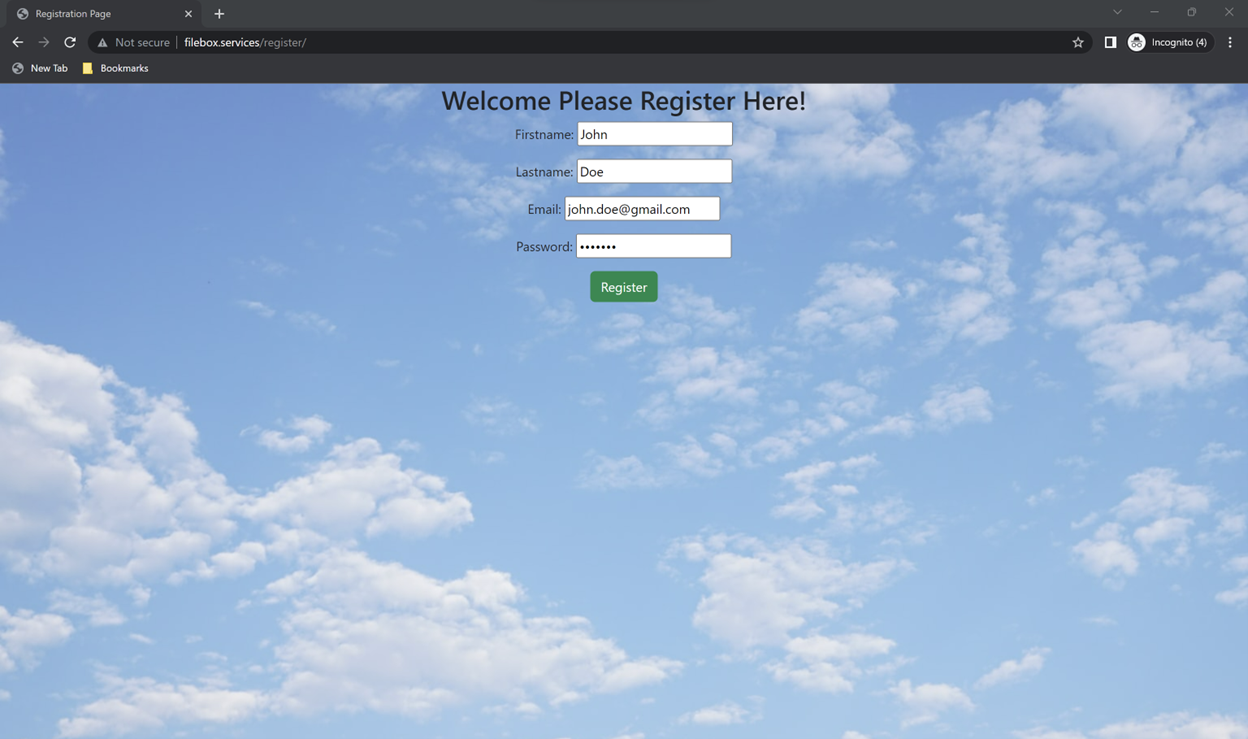
- Users can register to the Filebox application using the registration page.
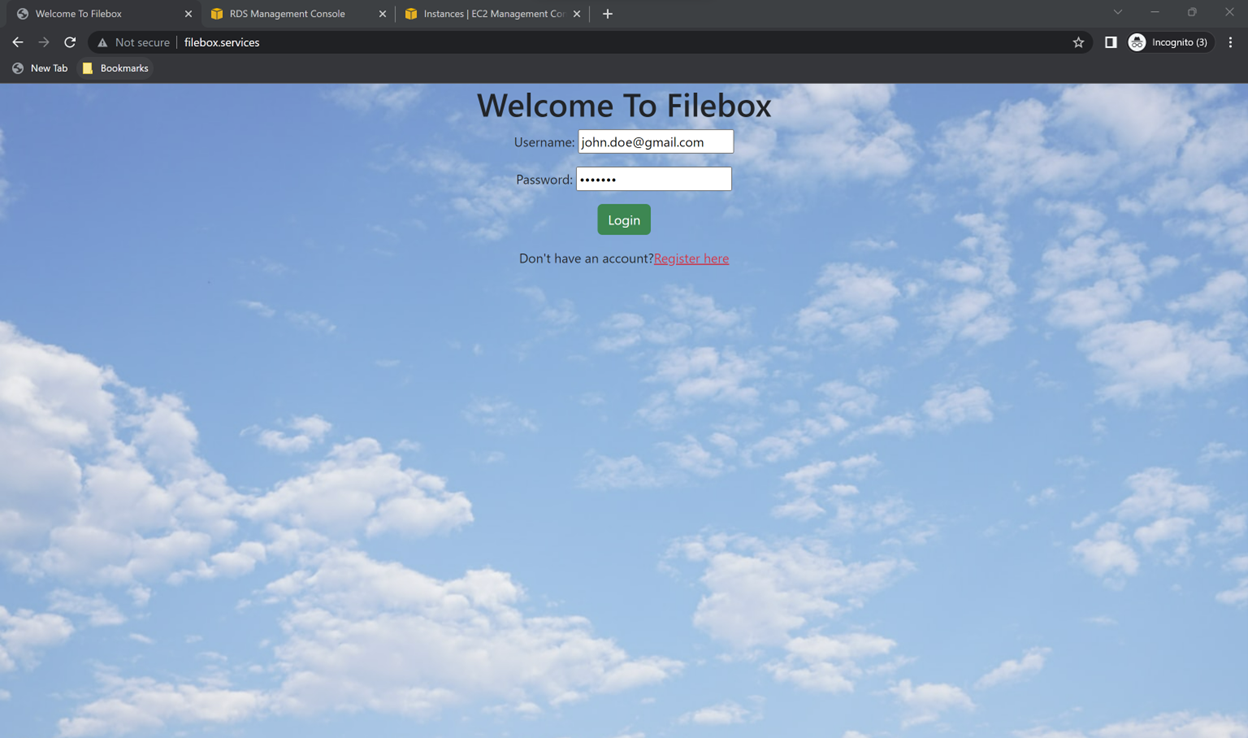
- The application allows users with valid credentials to sign-in into the application.
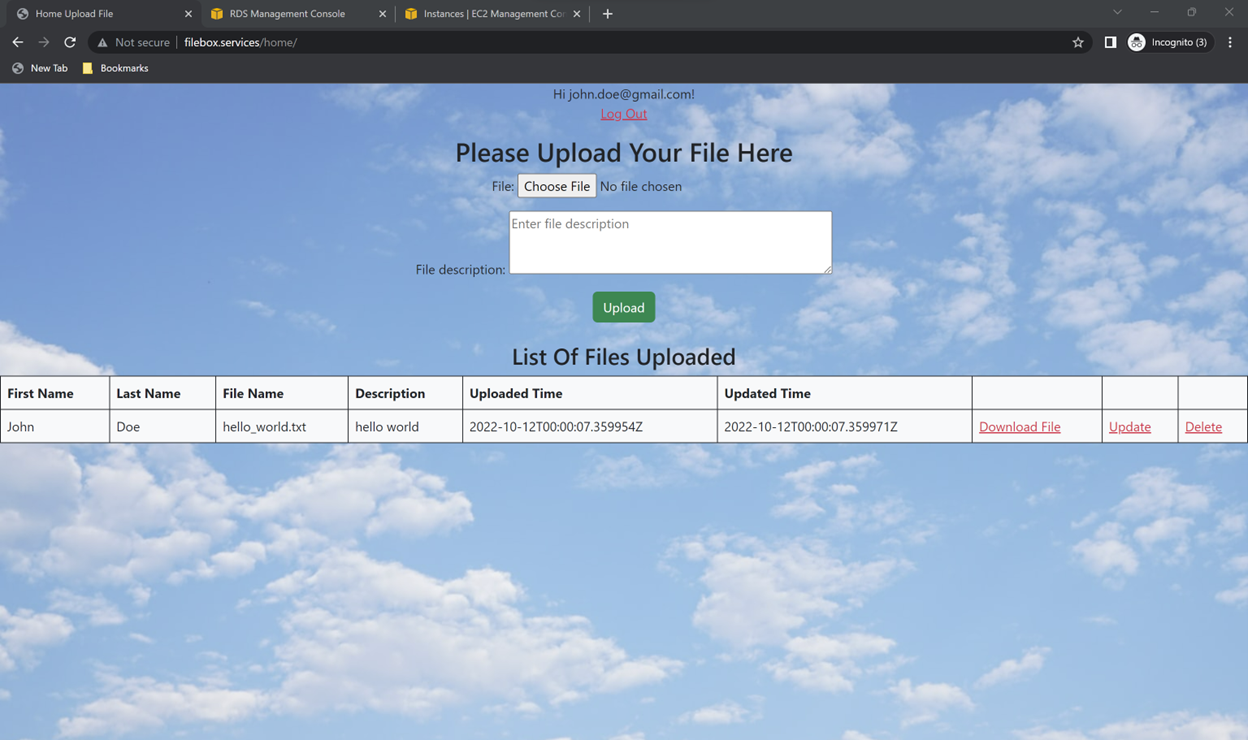
- After Sign-in, Users can upload the file they wish to. Once the file is uploaded successfully, they can view the files uploaded by them.
- Users can upload any type of files with file size less than 10 MB. If the user tries to upload a file with size greater than 10 MB, they will be prompted a message to upload a file less than 10 MB.
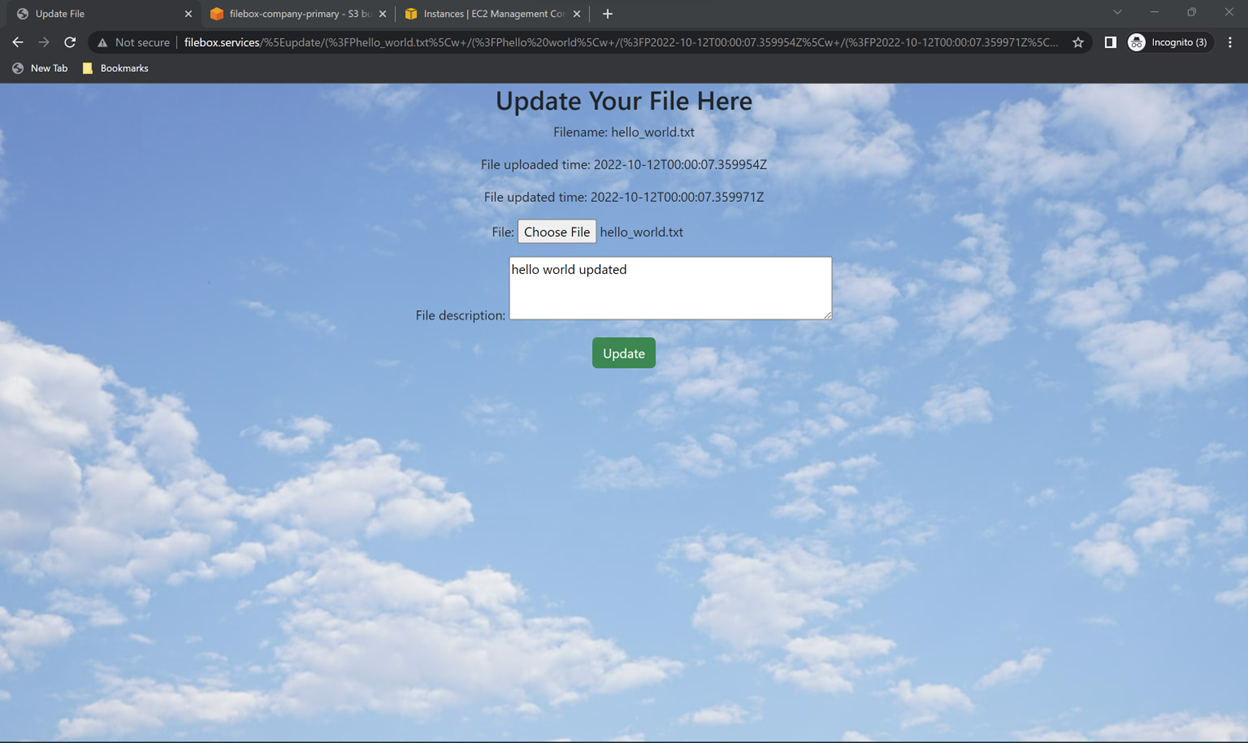
- The application allows users to update their previously uploaded files. Users can update file description and file content with the same file name.
- Users can delete their previously uploaded files.
- Admin view – A superuser/admin user can view all the files uploaded by all the users of the application and can manage(delete) them if necessary.
- The backend of filebox application is API driven so it can have a future mobile API.
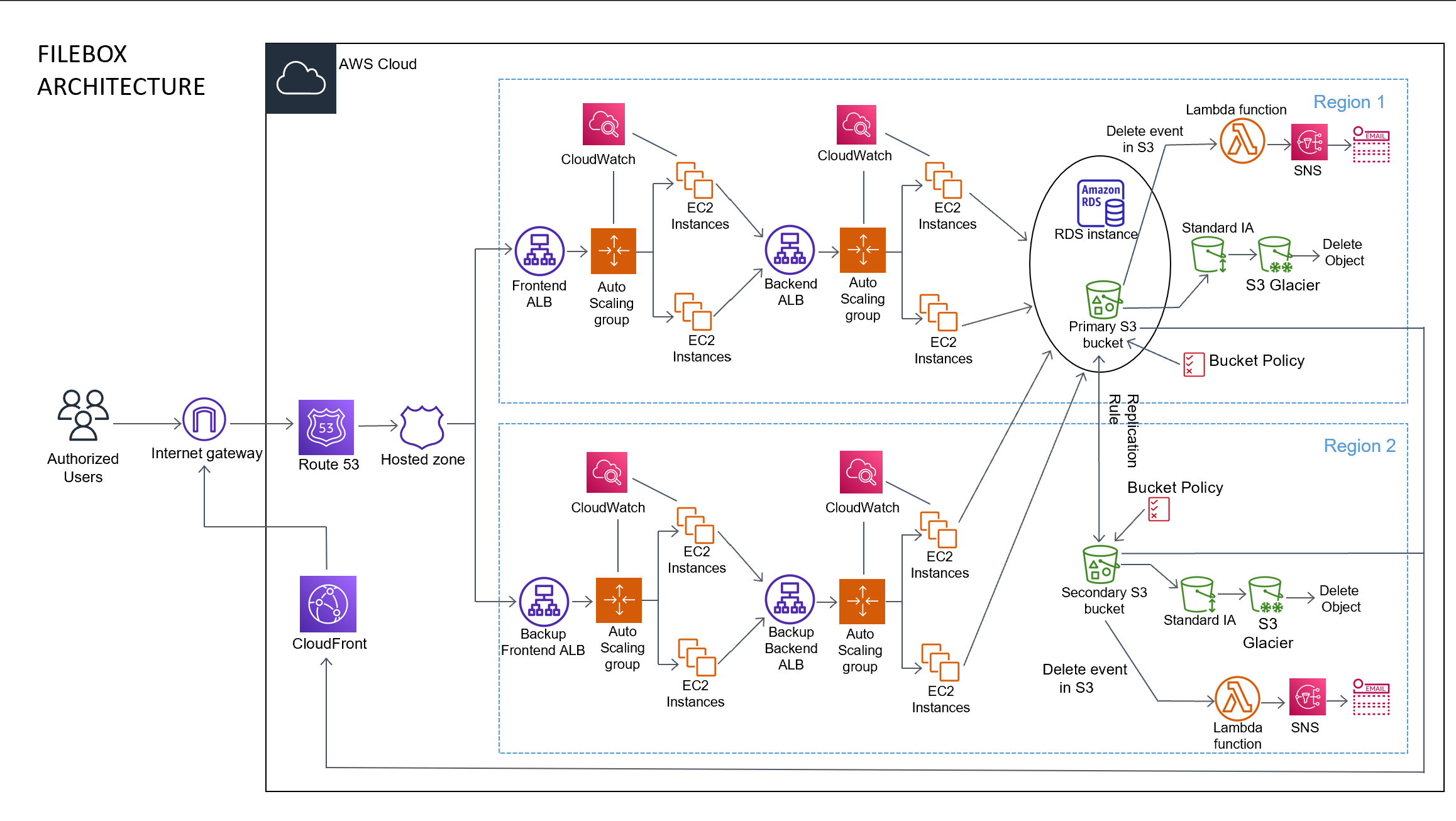
-
EC2 instances
Created two EC2 instances in us-west-1 region one for frontend and installed Apache as web server another one for backend application. Created another 2 EC2 instances in region us-west-2 which acts as backup instances in case of disaster recovery (entire region goes down). -
Elastic Load Balancer (ELB)
The filebox application uses Application load balancer.The application load balancer distributes incoming application traffic across multiple targets
The application uses two Application load balancers- filebox-frontend-load-balancer
- filebox-backend-load-balancer
-
Auto Scaling Group
Configure auto scaling group to scale up/down based on application workload. Also, to make the application highly available. Currently the application can scale to a max instance of 2 and min instance of 1 which can be changed based on application needs. -
S3 Bucket
The standard object storage service used to store the files uploaded by the users. Created 2 S3 buckets namely filebox-company-primary in region us-west-1 which serves as a primary bucket for the application and filebox-company-secondary in region us-west-2 which serves as backup in case of disaster recovery. -
S3 Standard IA
In Filebox Application, the lifecycle policy is defined on S3 buckets to transition objects/files to Standard IA storage after 75 days of storage in S3 standard. -
S3 Glacier Deep Archive
S3 Glacier Deep Archive provides storage for data archives which are rarely accessed. In Filebox Application, the lifecycle policy is defined to transition the objects/files from S3 Standard IA to S3 Glacier Deep Archive after 365 days. -
S3 Transfer Acceleration
S3 transfer acceleration promotes faster transfer to S3 bucket and is used to allow users to upload files from all over the world. -
CloudFront
The CloudFront is an CDN which places the contents near to the users via edge locations to reduce latency. In Filebox Application, a CloudFront Distribution is created and enabled for the file download functionality. -
Amazon Route 53
The Filebox Application uses a highly scalable and available DNS service called the Route 53 to route user requests to the filebox application. The application currently uses simple routing and can be changed to latency-based routing, weighted routing or geographical location-based routing based on the application needs. -
Amazon RDS (PostgreSQL instance)
The Filebox Application uses an Amazon RDS (PostgreSQL instance) a highly available and storage scalable relational database service. The database is used to store user data and file metadata uploaded by the users. This application currently uses Single AZ as multi-AZ is not available in free tier. To achieve multi-AZ, modify the existing DB instance to the instance which enables multi-AZ deployment where the RDS automatically creates a standby instance in different availability zone. -
AWS Lambda
In Filebox Application, any delete events which occur on S3 buckets trigger a lambda function which will in turn invoke SNS topic to send notification via email to the registered recipient. -
CloudWatch
CloudWatch is used to monitor the AWS resources. In Filebox Application it triggers alarms and send email notifications via SNS when the CPU utilization metric on the EC2 instances exceed the minimum threshold set which is currently set to 50 and can be modified anytime based on the CPU usage. Similarly Appropriate alarms are configured using CloudWatch for the AWS resources with different metrics. -
Amazon Simple Notification Service (SNS)
It is a simple notification service for AWS resources which is used to send emails and text messages for the events subscribed. In Filebox Application, when the alarms set on ec2 instances are triggered it sends notifications via email to the email recipient registered in the SNS topic.
- Install the softwares required for the project
PyCharm, Python3, pgAdmin. - Clone the project from GitHub to PyCharm IDE
- Create the virtual environment and activate it
- Install the below packages inside the virtual environment created
pip3 install django
pip3 install djangorestframework
pip3 install django-storages
pip3 install requests
pip3 install boto3
pip3 install psycopg2-binary - Set the environment variables AWS_ACCESS_KEY_ID, AWS_SECRET_ACCESS_KEY, AWS_S3_CUSTOM_DOMAIN, FILEBOX_DATABASE_USER, FILEBOX_DATABASE_PASSWORD in filebox application’s backend environment
- Set the RDS database server instance details under DATABASES in filebox_backend settings.py
- Run the below command inside filebox_backend folder to create superuser which has admin privileges and can view the files uploaded by other users
python manage.py createsuperuser - Inside filebox_backend folder run the following commands to start the filebox backend application
python manage.py makemigrations
python manage.py migrate
python manage.py runserver - Set the environment variable FILEBOX_BACKEND_SERVER to filebox application’s backend server in the filebox application’s frontend environment
- Inside the project folder run the following commands to start the filebox frontend application
python manage.py makemigrations
python manage.py migrate
python manage.py runserver
Registration Page
Login Page
File Upload Page(Home Page)
File Update Page