JetRacer is the AI Racing Robot powered by Nvidia Jetson Nano Developer Kit. It supports deep learning, auto line following, autonomous driving . Thus, it is the best place for you to start learning about AI application where you can see how the trained model being applied to the physical world. Robotic Operating System (ROS) is the natural choice for many autonomous driving. We all know that getting started with ROS is actually very challenging due to the steep learning curve of ROS. Therefore, why not we make the learning process more fun by directly using Muto and the JetRacer
You will need is a JetRacer autonomous AI racecar using NVIDIA Jetson Nano.
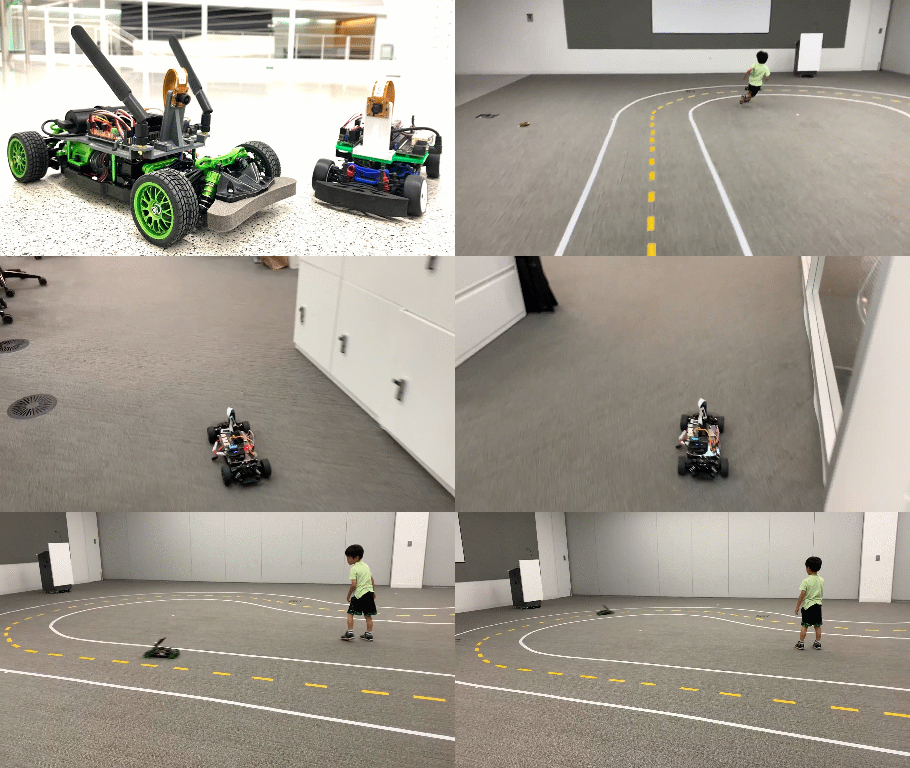
JetRacer can be obtained from (here)[https://www.waveshare.com/jetracer-ai-kit.htm]
This is an AI Racing Robot kit based on Jetson Nano Developer Kit. Supports deep learning, auto line following, autonomous driving and so on. We will use Operating System provided by given by Waveshare for the JetRacer AI Kit. You should follow the instructions at JetRacer AI Kit Wiki Pages to setup the software and the hardware. You can also follow basic examples to get a feel for the racer. These libraries can be also be used with ROS. However, we will use different packages for the Car teleoperation with a gamepad and to access the camera The ROS Joy and [ROS Jetson Camera}(https://github.com/sfalexrog/jetson_camera) packages.
Nvidia JetRacer with Jeson Nano 4GB uses JetPack 4.5.1 which is based on Ubuntu 18.02. This limits the ROS version to ROS Melodic, seeROS Distros here. You do not have to install ROS seperately, the following step will do it for you.
It is very easy to install Muto on the JetRacer:
-
Complete the hardware and software installtion steps described in JetRacer AI Kit Wiki Pages
-
Connect to you JetRacer
ssh jetson@<YOUR JETRACER IP> -
Checkout this repository
git clone https://github.com/composiv/jetracer_example.git -
Change into the jetracer_example folder and run the setup script
cd jetracer_example ./setup.sh [sudo] password for jetson: -
When prompted for password enter
jetsonor your password -
Sit back and relax while ROS melodic and Muto is being installed and setup. This may take sometime depending on your network speek. Make sure the Jetracer is plugged in.
  REDACTED

  [ 38%] Built target muto_msgs_generate_messages_py
  [ 56%] Built target muto_msgs_generate_messages_nodejs
  [ 74%] Built target muto_msgs_generate_messages_cpp
  [ 93%] Built target muto_msgs_generate_messages_eus
  [ 96%] Built target jetson_camera_node
  [100%] Built target jetson_camera_nodelet
  [100%] Built target muto_msgs_generate_messages
The scripts for starting muto on the JetRace is provided. After completing "Installing Muto on JetRacer".
-
Complete "Installing Muto on JetRacer".
-
Connect to you JetRacer
ssh jetson@<YOUR JETRACER IP> -
Change into the jetracer_example folder and edit the launch/config/muto.yaml configuration to change its name and connect to the Muto Twin server of your choice:
muto:
  stack_topic: /stack
  twin_topic: /twin
  type: simulator
+ twin_url: "http://ditto:ditto@sandbox.composiv.ai"
  commands:
      - name: ros/topic
        service: rostopic_list
        plugin: CommandPlugin
      - name: ros/topic/info
        service: rostopic_info
        plugin: CommandPlugin
      - name: ros/topic/echo
        service: rostopic_echo
        plugin: CommandPlugin
      - name: ros/node
        service: rosnode_list
        plugin: CommandPlugin
      - name: ros/node/info
        service: rosnode_info
        plugin: CommandPlugin
      - name: ros/param
        service: rosparam_list
        plugin: CommandPlugin
      - name: ros/param/get
        service: rosparam_get
        plugin: CommandPlugin
  pipelines:
      - name:  start
        pipeline:
          - sequence:
            - service: muto_compose
              plugin: ComposePlugin
            - service: muto_start_stack
              plugin: ComposePlugin
        compensation:
          - service: muto_kill_stack
            plugin: ComposePlugin
      - name:  kill
        pipeline:
          - sequence:
            - service: muto_compose
              plugin: ComposePlugin
            - service: muto_kill_stack
              plugin: ComposePlugin
        compensation:
          - service: muto_kill_stack
            plugin: ComposePlugin
      - name:  apply
        pipeline:
          - sequence:
            - service: muto_compose
              plugin: ComposePlugin
            - service: muto_apply_stack
              plugin: ComposePlugin
        compensation:
          - service: muto_kill_stack
            plugin: ComposePlugin
  mqtt:
    host: sandbox.composiv.ai # subject to change
    port: 1883
    keep_alive: 60
    user: none
    password: none
  thing:
    namespace: org.eclipse.muto.sandbox # subject to change
    definition: org.eclipse.muto:EdgeDevice:0.0.1
    attributes:
      brand: jetracer
      model: ai-racer
    anonymous: False  # Use this for automatically generated id (uuid based)
    #   if anonymous is True or anynoymous param is missing, name/id will be auto generated
    # TODO: edit the name below
+   name: bcx-jetracer-muto
-
Change into the jetracer_example folder and start Muto on the Jet Racer:
cd jetracer_example ./start.sh -
Muto will start and rgister the Car with the twin server.
  ...
  REDACTED
  ...
  * /rosbridge_websocket/websocket_ping_timeout: 30
  * /rosdistro: melodic
  * /rosversion: 1.14.13

  NODES
  /
      composer_plugin (muto_composer/composer_plugin.py)
      launch_plugin (muto_composer/launch_plugin.py)
      muto_agent (muto_agent/muto_agent.py)
      muto_composer (muto_composer/muto_composer.py)
      rosapi (rosapi/rosapi_node)
      rosbridge_websocket (rosbridge_server/rosbridge_websocket)

  ROS_MASTER_URI=http://localhost:11311

  process[muto_agent-1]: started with pid [19100]
  process[muto_composer-2]: started with pid [19102]
  process[composer_plugin-3]: started with pid [19103]
  process[launch_plugin-4]: started with pid [19104]
  process[rosbridge_websocket-5]: started with pid [19106]
  process[rosapi-6]: started with pid [19109]
  ...
  Connected with result code Success
  ('Subscribed to: ', 'org.eclipse.muto.sandbox:bcx-sim-01aa/#')
  2022-11-06 23:26:39+0800 [-] [INFO] [1667748399.104261]: Client connected.  1 clients total.
  2022-11-06 23:26:43+0800 [-] [INFO] [1667748403.881240]: [Client 0] Subscribed to /main_camera/camera_info
  2022-11-06 23:26:43+0800 [-] [INFO] [1667748403.906542]: [Client 0] Subscribed to /main_camera/image_raw
  2022-11-06 23:26:43+0800 [-] [INFO] [1667748403.940345]: [Client 0] Subscribed to /drive
  2022-11-06 23:26:43+0800 [-] [INFO] [1667748403.982889]: [Client 0] Subscribed to /joy
New we can start a JetRacer Stack on the car to get access to the Camera, control the Car with the Gamepad and visualize with Foxglove Studio.
- Got to the
Dashboardat https:/dashboard.composiv.ai.

-
After you start the stack. You should see something similar to the following on your console:
... [ WARN] [1667748916.584222174]: [camera] does not match name raspicam_v2 in file /home/jetson/junk/src/jetracer/jetson_camera/camera_info/raspicam_v2.yaml [ WARN:0] global /home/nvidia/host/build_opencv/nv_opencv/modules/videoio/src/cap_gstreamer.cpp (933) open OpenCV | GStreamer warning: Cannot query video position: status=0, value=-1, duration=-1 WARNING: Carrier board is not from a Jetson Developer Kit. WARNNIG: Jetson.GPIO library has not been verified with this carrier board, WARNING: and in fact is unlikely to work correctly. -
Press the buttons on your Gamepad to move the JetRacer around. You can change how the gamepad controls the car by modifying the configuration parameters in src/jetracer/jetracer_teleop/jetracer.yaml:
Navigate to foxglove studio webbsite. Click on Open Connection and change the Port ID from 9090 to your own port ID. In this example, we set the websoocket port to 7777, so set the data connection to ws://locahost:7777. Now we we can import the layout. These layouts will display predfined panels suitable for visualization oıf our example:
