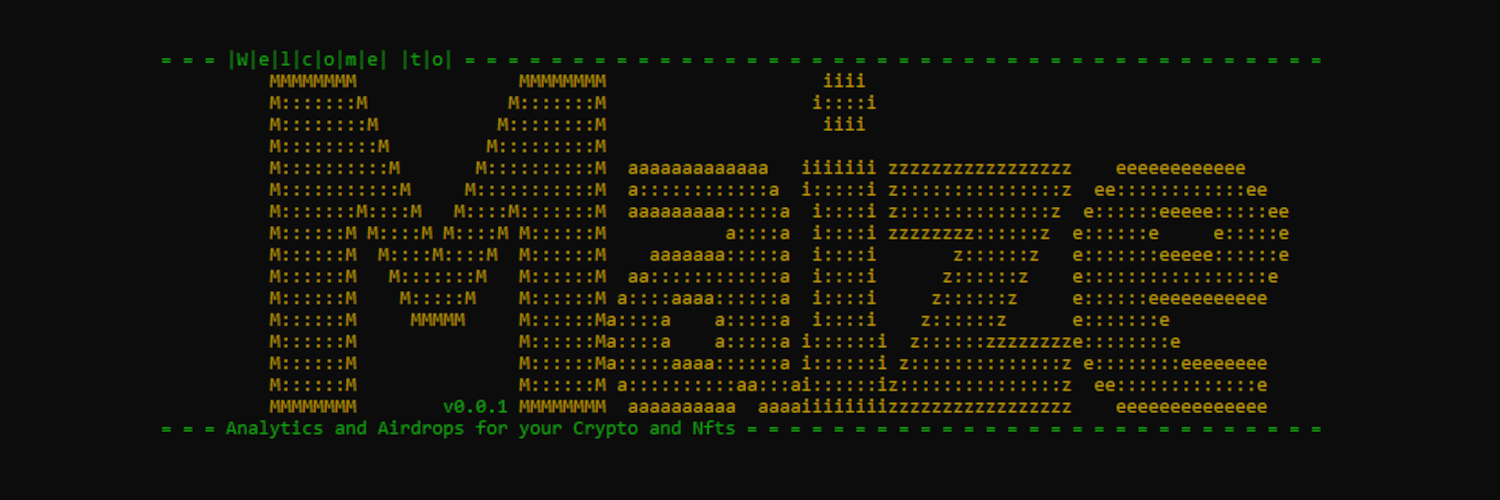
In order to use Maize, you will need to own a 'Maize Origin Logo'. One can be purchased at https://loopexchange.art/collection/maizeorigin.

You do not need 'Maize Origin Logo' to use Maize on the testnet goerli.
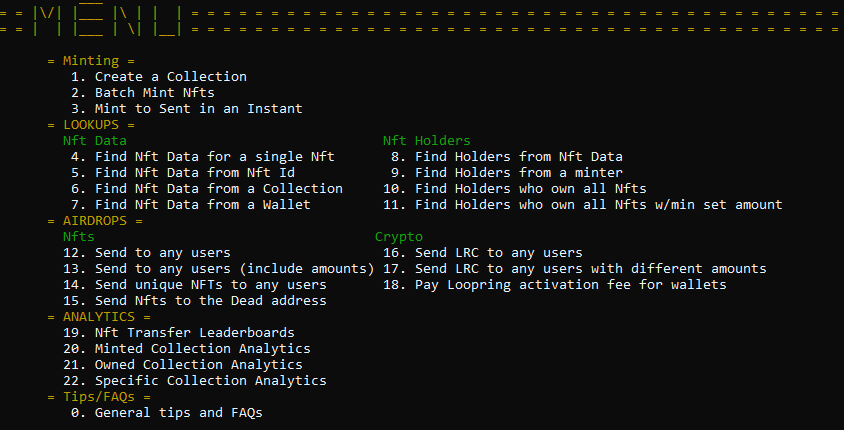
Download one of the compiled releases in the Releases section and unzip it into a location of your choice. You will need to edit the included appsettings.json file with your own wallet details.
Here is a video going over the setup: https://youtu.be/00TY9aHTUuE.
This application uses a MetaMask/GameStop private key to sign the transfers. You will need to export that out from your metamask/gamestop Wallet. You can export the Loopring related account details from the "Security" tab while logged into https://loopring.io. Make sure these details are from the same Wallet. Note that you cannot perform transfers with a Loopring wallet
macOS users: You also need to run the following command in the unzipped folder of LoopDropSharp to turn it into an executable to run it. You may also need to add it as a trusted application if it gets blocked from running (Settings > Security & Privacy).
chmod +x Maize
DO NOT SHARE ANY API OR PRIVATE KEYS with anyone else!!!!!!!
You will need to change the both the main and test appsettings.json" file in the project directory with the necessary information. The video above covers this.
{ // this is the mainnet setup
    "Settings": {
      "LoopringApiKey": "asdfasdfasdfasdfasdfasdf", //Your loopring api key.  DO NOT SHARE THIS AT ALL. FLOWERS INFORMATION
      "LoopringPrivateKey": "0xasdfasdfasdfasdfasdfasdf", //Your loopring private key.  DO NOT SHARE THIS AT ALL.
      "MMorGMEPrivateKey": "asdfasdfasdfasdfasdfasdf", //Private key from metamask. DO NOT SHARE THIS AT ALL.: null,
      "LoopringAddress": "0xasdfasdfasdfasdf", //Your loopring address
      "LoopringAccountId": 1234, //Your loopring account id
      "ValidUntil": 1700000000, //How long this transfer should be valid for. Shouldn't have to change this value
      "Environment": 1 // 1 = mainnet or 5 = Goerli
}
}

{ // this is the goerli setup (note that these values may differ from mainnet)
  "Settings": {
    "LoopringApiKey": "asdfasdfasdfasdfasdfasdf", //Your loopring api key.  DO NOT SHARE THIS AT ALL. FLOWERS INFORMATION
    "LoopringPrivateKey": "0xasdfasdfasdfasdfasdfasdf", //Your loopring private key.  DO NOT SHARE THIS AT ALL.
    "MMorGMEPrivateKey": "asdfasdfasdfasdfasdfasdf", //Private key from metamask. DO NOT SHARE THIS AT ALL.: null,
    "LoopringAddress": "0xasdfasdfasdfasdf", //Your loopring address
    "LoopringAccountId": 1234, //Your loopring account id
    "ValidUntil": 1700000000, //How long this transfer should be valid for. Shouldn't have to change this value
    "Environment": 5 // 1 = mainnet or 5 = Goerli
  }
}
After setting up the 2 appsettings.json, launch Maize and get started.
In the Banish.txt located in the project directory add wallet addresses that you do not want to send to. If you have a wallet address that you never want to airdrop an Nft to or send crypto to then you can place them on this list. The application checks this list before sending Nfts or crypto. You can add a long wallet address or the ENS.
Maize is the successor to LoopDropSharp, https://github.com/cobmin/LoopDropSharp.
If you have used LDS then you will love Maize. It has all the same functionality and more. Improved error handling, faster performance, intuitive interface, and yes, all data is logged to a csv file to use in notepad or excel.